
7 Hidden macOS Settings That Will Instantly Make Your Mac Feel Faster

If your Mac has been feeling a little sluggish lately, you’re not alone. At first, most Macs seem to fly through tabs and apps like any brand new computer, but over time, it starts taking longer to switch desktops, open Finder, or launch that one app you use every day. It’s easy to assume it's just your Mac getting old, but there are often other reasons behind it.
In reality, a slow Mac is usually the result of several factors, including having too many apps open (even when your Mac is just starting), leaving too many things running in the background, or having too many visual effects being drawn on top of everything.
The good news is that you can fix these issues without installing anything, paying for a cleaner app, or even talking to Apple support. Read on for 7 macOS settings you can tweak in a few minutes to make your Mac feel noticeably snappier.
Remove 'Open at Login' Apps You Don’t Need
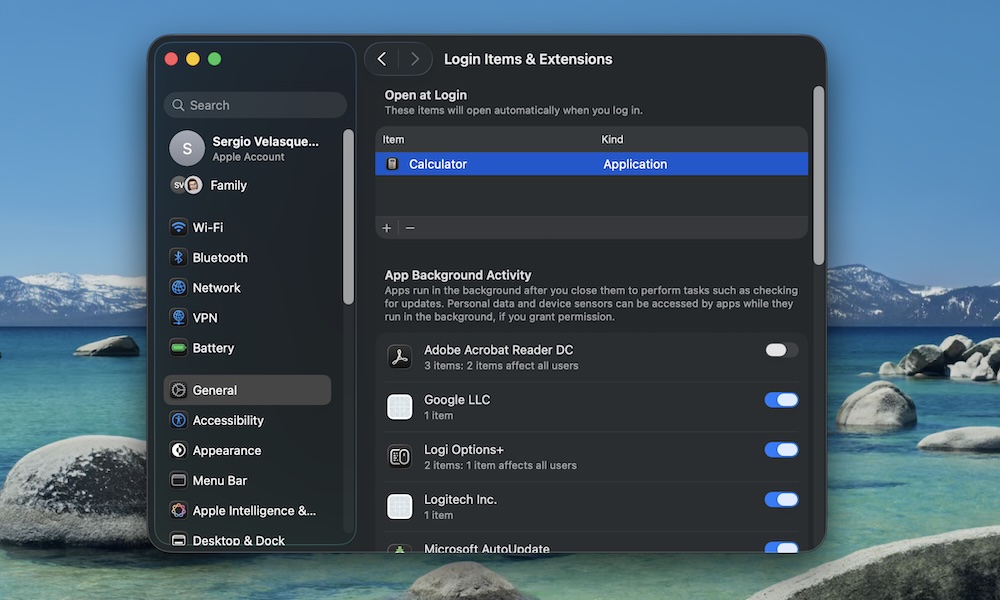
One of the fastest ways to make your Mac feel faster is to stop it from doing extra work before you even start working. Many apps will quietly add themselves to your login list when you install them, resulting in your Mac launching a bunch of stuff you didn’t ask for every time you log in. This consumes memory and makes the first few minutes of your session feel slow.
Even if your Mac boots quickly, having too many apps open at once can eventually slow things down, and you probably don’t really need all that clutter from the get-go.
Luckily, you can get rid of your login items in a couple of steps: Here’s how:
- Click on the Apple menu (the button with the Apple logo) in the top left corner of your screen.
- Go to System Settings.
- Click on General.
- Go to Login Items & Extensions.
- Under Open at Login, click an app you don’t need.
- Click the Remove (–) button.
Use Reduce Transparency to Make macOS Feel More Responsive
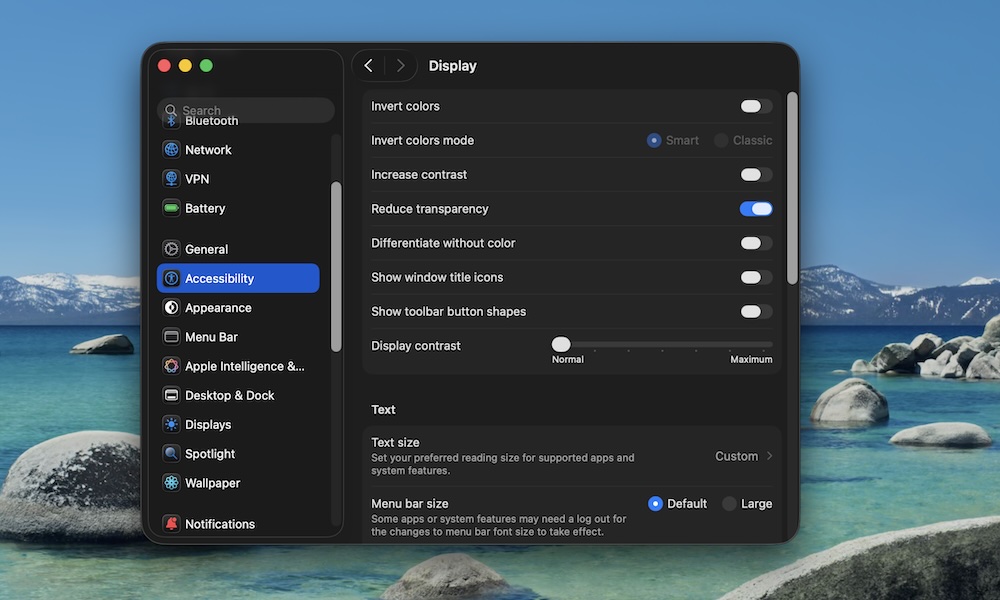
The glassy design look in macOS Tahoe may look great to some of us, but those transparency effects force your Mac to constantly redraw what’s behind menus, sidebars, and window elements. On newer Macs, that’s usually fine, but on older Intel Macs — and even some Apple silicon machines — it can make everything feel a little more sluggish than it needs to as the GPU struggles to keep up with the glassy blur effects.
Reducing transparency does two things at once: it makes the interface easier to read, and it cuts down on some of the visual work your Mac is doing every time you move around the system. Here's where to find that setting:
- Click on the Apple menu (the button with the Apple logo) in the top left corner of your screen.
- Go to System Settings.
- Click on Accessibility.
- Click on Display.
- Turn on Reduce Transparency.
You’ll usually notice the change right away in the menu bar and certain side panels. The overall feel becomes a bit more solid, and that’s a good thing if you care more about speed and clarity than visual flair.
Turn On Reduce Motion to Speed Up System Animations
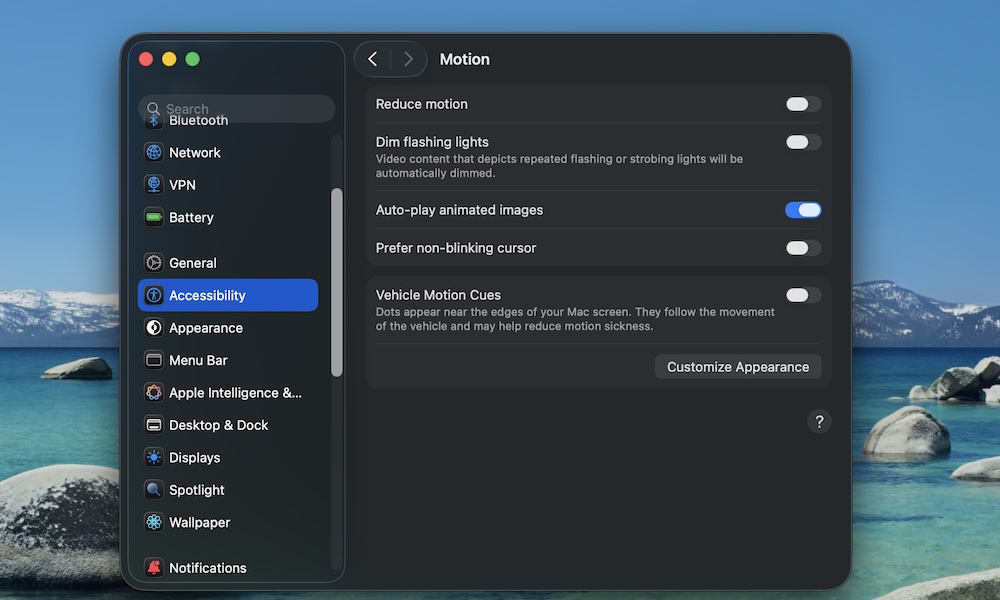
Animations are one of the biggest reasons a Mac can feel slow, even when it isn’t old. If switching Spaces feels like it takes longer than it should, or opening certain views has that minor loading effect that makes everything feel delayed, the culprit might be the animations.
The Reduce Motion feature cuts down on those transitions. Your Mac won’t suddenly benchmark higher, but it often feels faster because you’re not waiting for the UI to finish doing a little animation every time you open a window or move something around.
- Click on the Apple menu (the button with the Apple logo) in the top left corner of your screen.
- Go to System Settings.
- Click on Accessibility.
- Click on Motion.
- Turn on Reduce Motion.
If you like macOS animations, you can leave this off. But if your goal is to feel like your Mac is faster, you might want to consider trying it out, even if everything feels less “alive.”
Change the Window Minimize Effect to Scale
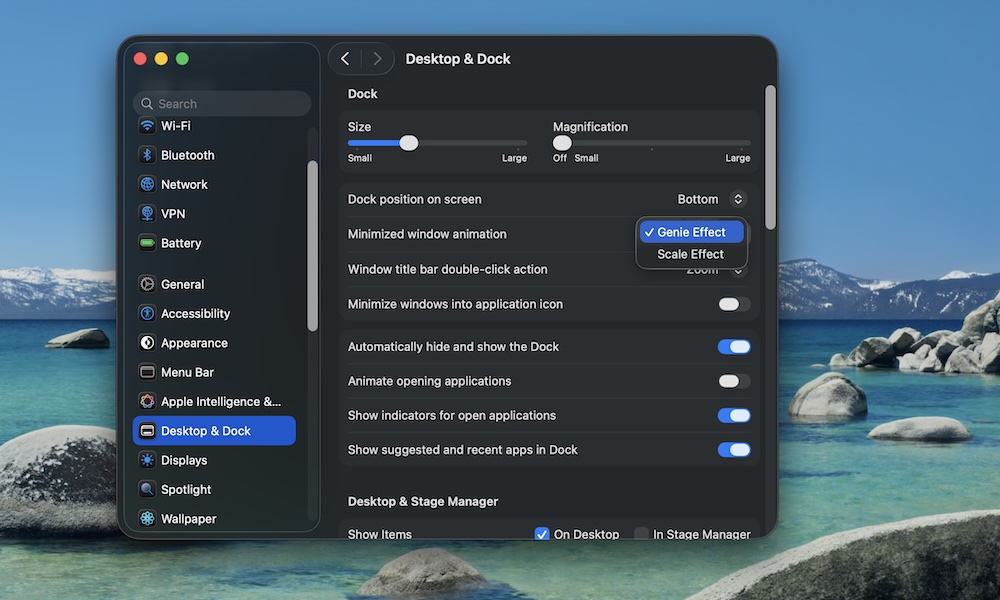
By default, your windows will minimize and open with a “Genie effect,” a cool transition that makes your windows swoosh back to the Dock.
The Genie effect is fun, but it’s also one of those little UI details that can make your Mac feel slower than it is, especially if you minimize and restore windows constantly.
Switching to the Scale effect makes minimizing windows feel a bit quicker. It’s subtle, but if you’re looking to make your Mac feel snappy, this change might do the trick:
- Click on the Apple menu (the button with the Apple logo) in the top left corner of your screen.
- Go to System Settings.
- Click on Desktop & Dock.
- Click the dropdown menu next to Minimize window animation.
- Select Scale Effect.
Combine this with Reduce Motion and minimizing windows will start to feel almost instant. Sure, it doesn’t feel as magical as before, but it might be a bit more practical over time.
Use Storage Recommendations to Keep Breathing Room
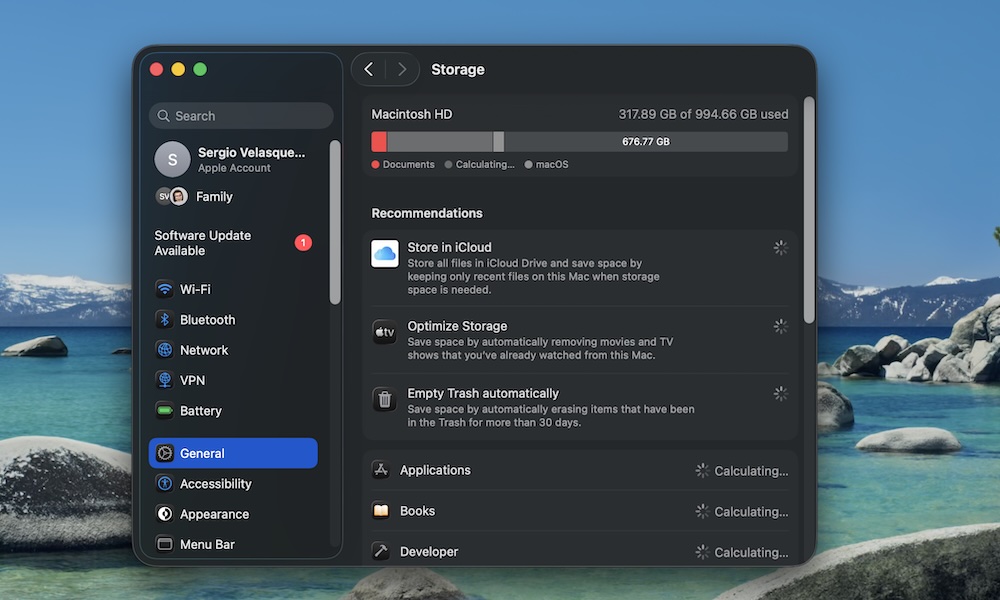
If your Mac is low on storage, it doesn’t just affect downloads; it also impacts performance. macOS uses free space for caches and swap memory (which your Mac uses as extra RAM when it runs out of physical memory). When your drive is nearly full, everything feels slower. Your apps take longer to open, updates feel really sluggish, and your Mac can feel like it’s constantly playing catch-up.
What you should probably do is go through all your files and apps and get rid of anything you don't need. With that said, if you don’t have time for that, your Mac can help you out. The built-in Storage recommendations are a clean, Apple-approved way to reclaim space without playing “guess what I can delete.”
- Click on the Apple menu (the button with the Apple logo) in the top left corner of your screen.
- Go to System Settings.
- Click on General.
- Click on Storage.
- Review the Recommendations (such as “Store in iCloud” and other space-saving options).
A good target is keeping at least 10–20 GB free if you can. You don’t need to obsess over it, but you also don’t want your Mac living on the edge with barely any free space left.
Disable Safari Extensions You Don’t Use
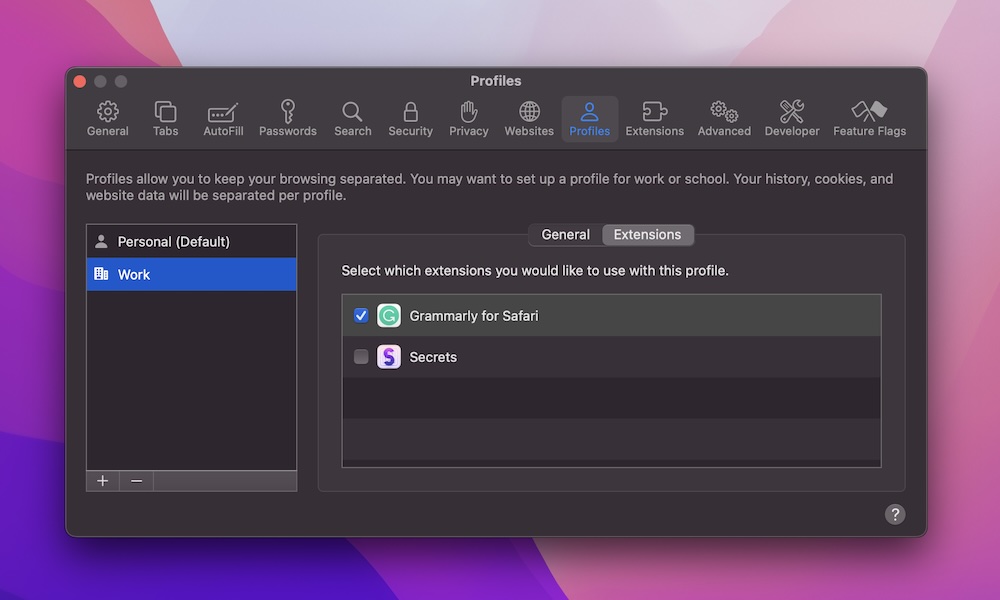
Safari extensions are one of those “small” things that can have a surprisingly big effect, especially if you have more than a few installed that run constantly. Content blockers, coupon extensions, productivity tools, and add-ons can all add up. Sometimes that might be worth it, while other times it’s just a tool that you should’ve deleted months ago.
If you can’t tell what an extension does, or you don’t expect to use it again, uninstall it. Here's how:
- Open Safari.
- Click Safari near the top of the screen.
- Go to Settings.
- Go to the Extensions tab.
- Click the minus button next to the extension to delete it.
Since Safari extensions are often bundled with apps, you may also need to visit your Applications folder in Finder and delete the underlying app. If you plan to continue using the app but don't want the extension in Safari, you can just uncheck it instead.
This isn't just a Safari problem; if you're using Chrome or Firefox you'll want to dive in to their extensions sections and see if there's anything you don't need or no longer use. In fact, the much broader collecton of extensions for these browsers makes it even more likely they could be needlessly cluttered with extensions.
Find (and Stop) the One App That’s Eating Your Mac Alive
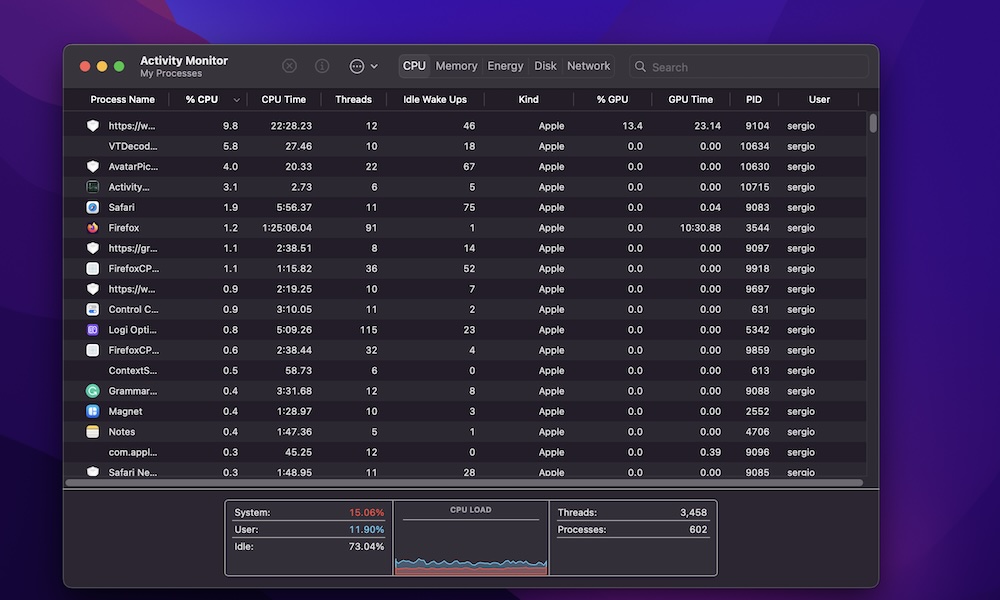
When a Mac feels slow for no apparent reason, there’s almost always an app behind the issue. Of course, it can also be a faulty process or a browser tab that’s doing something weird in the background.
Activity Monitor is a built-in tool that can help you with that. If something is ruining your CPU, hoarding memory, or running wild, you can spot it here and shut it down.
- Open Activity Monitor (use Spotlight search,or go to your Applications folder).
- Click the CPU tab (or Memory if you suspect that’s where the issue is).
- Select the app or process that’s misbehaving.
- Click the Stop (x) button at the top of the window.
- Choose Quit or Force Quit to close the app. Quit is the polite way to ask the app to stop, ensuring it shuts down properly and saves any data, so you should try this first. If that doesn't work, you can use Force Quit as an "emergency stop" to kill the app off.
A quick note for your Mac’s safety: if you don’t recognize a process name, don’t force quit it blindly. A quick search can tell you whether it’s harmless, essential, or tied to something you installed.
Keep Your Mac in Great Shape
More often than not, if your Mac is starting to slow down, there are a lot of things you can do about it. Whether it’s closing apps, removing extensions, or just tweaking your settings, you can make a few changes to make sure your Mac remains in tip-top shape.
By following the tips on this list, you should start to see a noticeable difference that will make your Mac feel snappy. The best part is that every change in this list is safe, and anyone can try it. So try the tweaks that sound good, try them out for a couple of days, and keep what makes your Mac feel the way you want it to feel.