
Keep 10–20% of Your Storage Free (at Least)
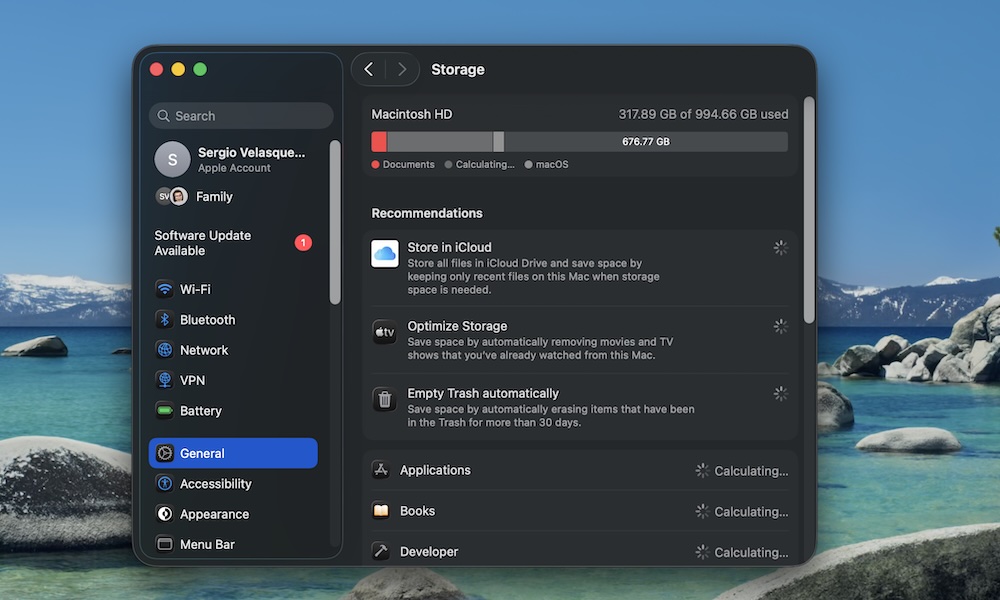
A nearly full solid-state drive (SSD) is one of the most common reasons a Mac starts to slow down. macOS uses free disk space as virtual memory. When that space disappears, everything from app launches to copying files will take longer.
If your Mac has already warned you that it’s almost full, it’s time to fix it.
- Click the Apple menu in the top left corner.
- Go to System Settings.
- Click on General.
- Go to Storage.
From there, you can follow your Mac’s recommendations, which tell you to store more files in iCloud or empty your trash. Additionally, you can scroll down and click on any of the categories available, like Applications or Documents, and start deleting everything that you won’t need anymore. It might take some time, but it will definitely be worth it. As a rule of thumb, try to keep at least 10–20% of your SSD free.