
Manage Login Items to Speed Up Your Mac From the Start
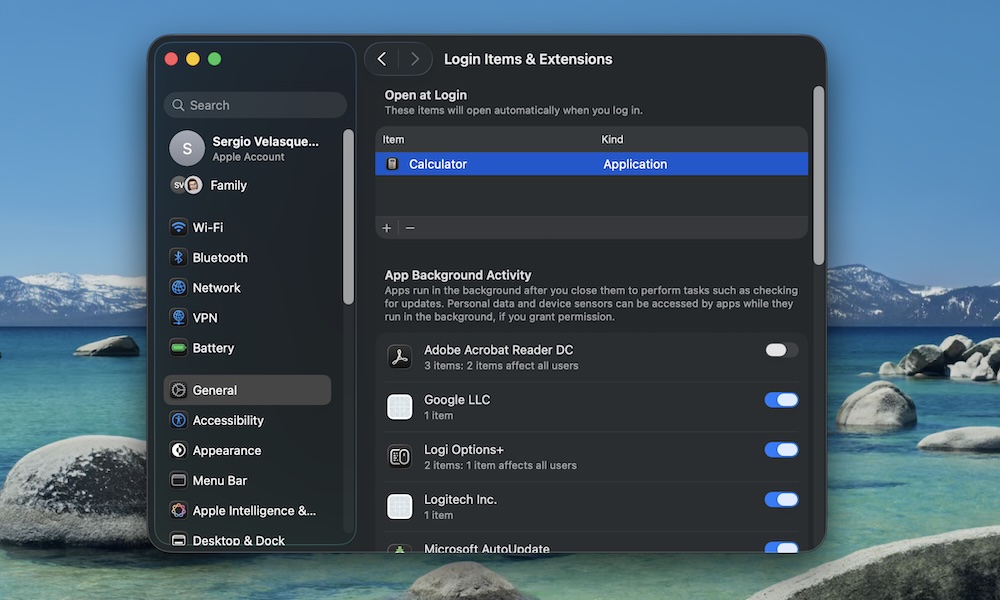
It’s very easy to install an app and give it permission to auto-launch when you log in to your Mac. If you do this a few times, your Mac will suddenly open a bunch of apps every time you reboot, likely making it work harder than it really needs to.
That’s why starting up your Mac can take ages, and your fans might spin up like crazy before you even open Safari.
Needless to say, it’s pretty important to manage your Login Items so your Mac can run smoothly from the get-go. Here’s how to check this:
- Click the Apple menu in the top left corner.
- Go to System Settings.
- Click on General.
- Scroll down and click on Login Items & Extensions.
- Under Open at Login, click on any app you want to remove.
- Click the minus button in the bottom left corner.
Additionally, you can also go under the App Background Activity section, and turn off any app that doesn’t need to work in the background after you close it.