
Keep macOS Up to Date
Many people repeatedly click the “Remind Me Tomorrow” button for software updates for weeks. That’s understandable, as nobody wants a random update to break something right before a deadline or waste time waiting for it to finish.
However, skipping macOS updates is one of the fastest ways to miss out on performance improvements, security patches, and bug fixes that quietly keep your Mac healthy.
Apple constantly tweaks things like power management, memory handling, and security behind the scenes. Those small changes add up over time, especially on newer Apple silicon machines, where firmware and macOS updates can improve battery life and thermal behavior.
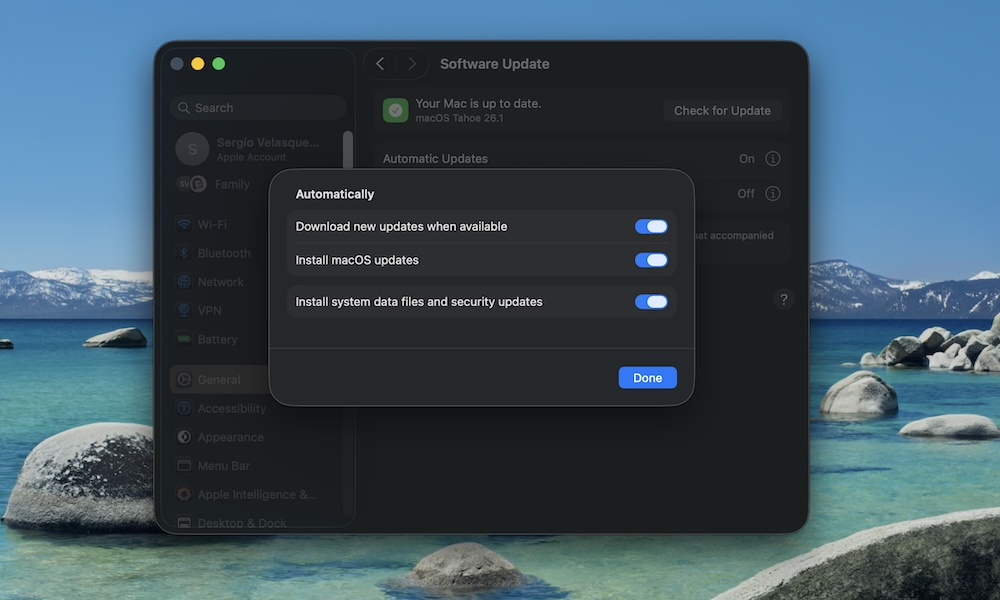
So if you have an update available, install it. To make this easier, you can ask your Mac to automatically download and install updates so you don’t have to worry about it. This is how:
- Click the Apple menu in the top left corner.
- Go to System Settings.
- Click on General.
- Click Software Update.
- Install any available updates.
- Click the i icon next to Automatic Updates, and turn on Download new updates when available and Install macOS Updates.
You don’t have to jump on day-one major releases if you’re the cautious type. But try to update your Mac regularly to ensure it can take advantage of essential patches or fixes.