
10 Simple Habits to Keep Your Mac Running Like New
 Daniel Korpai
If you use your Mac every day, it probably feels more like an appliance than a computer. You open the lid, get to work, and hope nothing slows down or breaks. However, while macOS is great at keeping issues away, that doesn't mean there isn't some clutter hiding beneath the surface that can eventually lead to problems.
Caches grow, login items pile up, your desktop slowly turns into a new downloads folder, and suddenly your “fast” MacBook feels tired before its time.
The good news is that you don’t need to be an expert or download an obscure cleaning app to keep a Mac running smoothly for years. A few simple changes, done routinely but occasionally, can make a huge difference over time.
To help you make your Mac run as smoothly as possible, we've gathered some of the best maintenance tips you need to follow. Read on for 10 ways to keep your Mac healthy and fit.
Keep macOS Up to Date
Many people repeatedly click the “Remind Me Tomorrow” button for software updates for weeks. That's understandable, as nobody wants a random update to break something right before a deadline or waste time waiting for it to finish.
However, skipping macOS updates is one of the fastest ways to miss out on performance improvements, security patches, and bug fixes that quietly keep your Mac healthy.
Apple constantly tweaks things like power management, memory handling, and security behind the scenes. Those small changes add up over time, especially on newer Apple silicon machines, where firmware and macOS updates can improve battery life and thermal behavior.
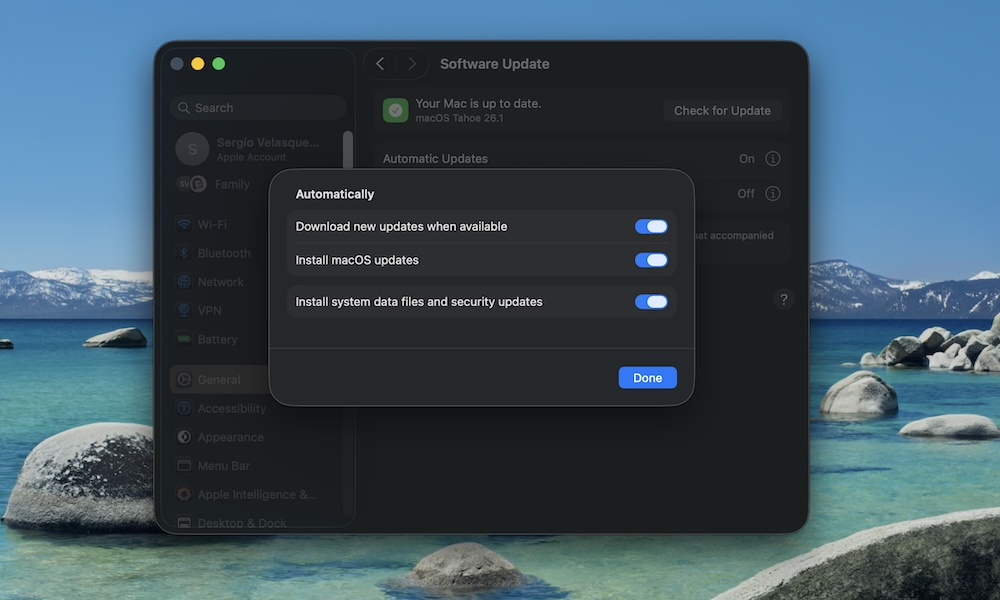
So if you have an update available, install it. To make this easier, you can ask your Mac to automatically download and install updates so you don't have to worry about it. This is how:
- Click the Apple menu in the top left corner.
- Go to System Settings.
- Click on General.
- Click Software Update.
- Install any available updates.
- Click the i icon next to Automatic Updates, and turn on Download new updates when available and Install macOS Updates.
You don’t have to jump on day-one major releases if you’re the cautious type. But try to update your Mac regularly to ensure it can take advantage of essential patches or fixes.
Restart Your Mac at Least Once a Week
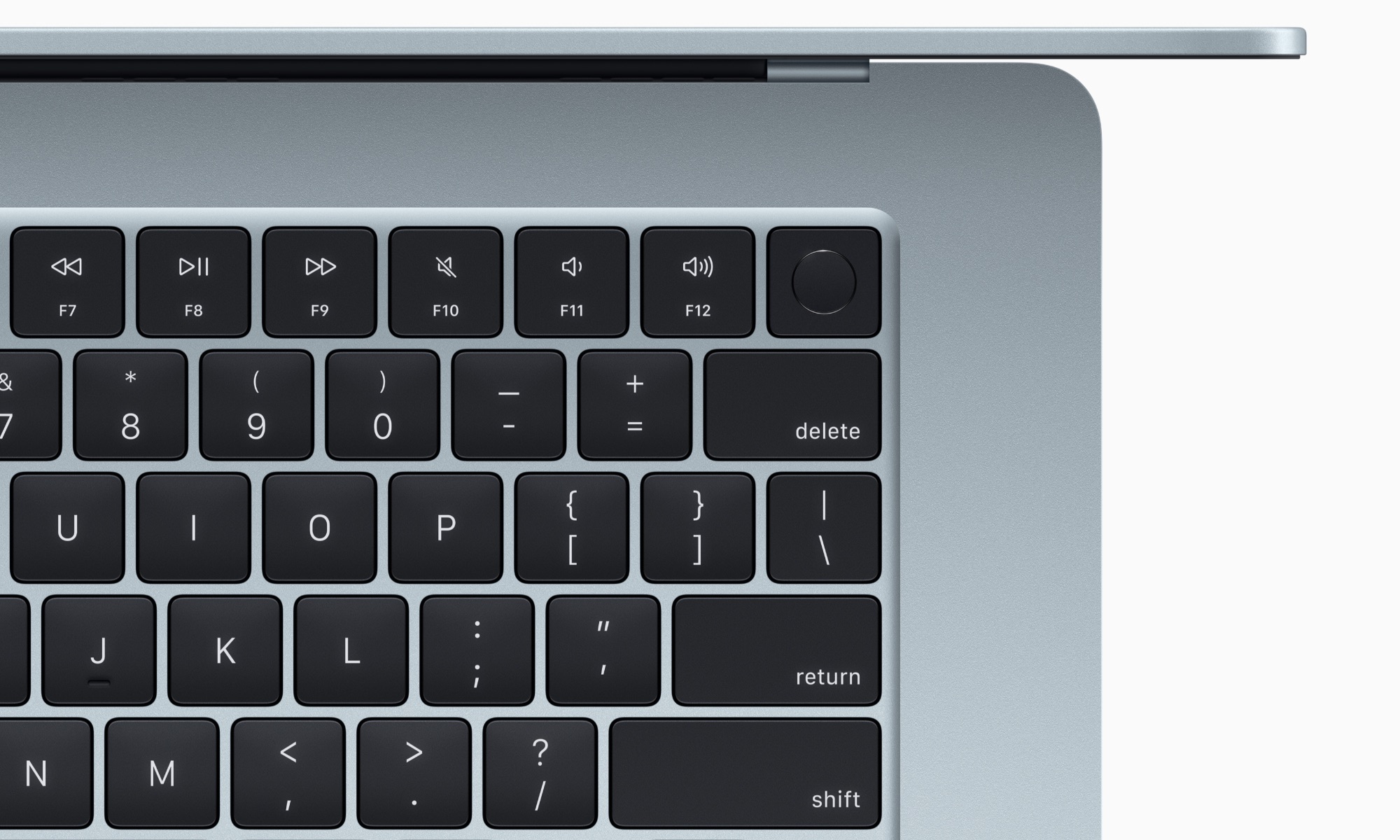
Another common habit is never shutting down or restarting your Mac. Apple silicon Macs sleep so efficiently that it’s easy to keep closing the lid and letting them sleep. Over time, though, background processes can get stuck, apps will consume more resources, and your Mac begins to feel a little sluggish.
A quick restart clears RAM, resets stuck services, and gives the system a clean slate. If your Mac hasn’t been restarted in weeks, you need to let it clear things out. Simply click the Apple menu in the top right corner and select Restart or Shut Down.
Making this a once-a-week habit (or whenever the system feels a bit “off”) is one of the easiest maintenance steps you can take.
Manage Login Items to Speed Up Your Mac From the Start
It’s very easy to install an app and give it permission to auto-launch when you log in to your Mac. If you do this a few times, your Mac will suddenly open a bunch of apps every time you reboot, likely making it work harder than it really needs to.
That’s why starting up your Mac can take ages, and your fans might spin up like crazy before you even open Safari.
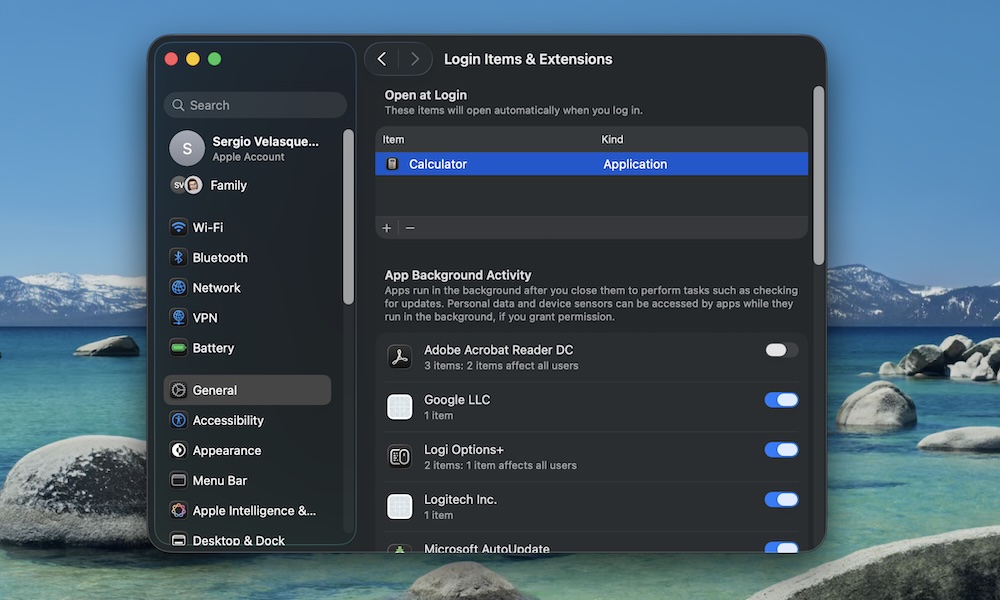
Needless to say, it's pretty important to manage your Login Items so your Mac can run smoothly from the get-go. Here's how to check this:
- Click the Apple menu in the top left corner.
- Go to System Settings.
- Click on General.
- Scroll down and click on Login Items & Extensions.
- Under Open at Login, click on any app you want to remove.
- Click the minus button in the bottom left corner.
Additionally, you can also go under the App Background Activity section, and turn off any app that doesn't need to work in the background after you close it.
Clear Out Your Desktop to Improve Performance
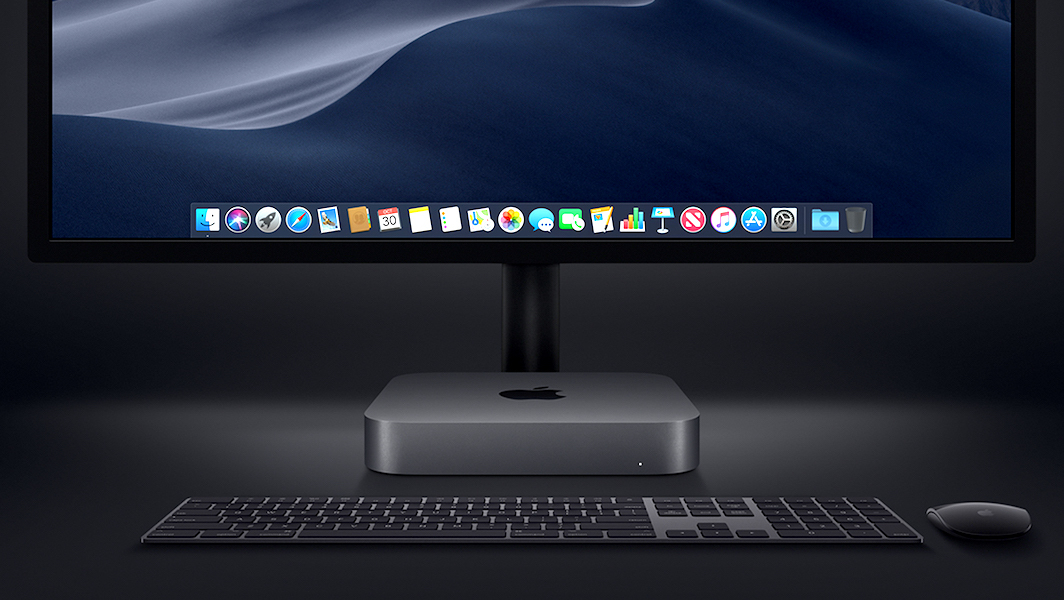
If your desktop looks like a collage of screenshots, PDFs, and random project folders, you’re not alone. After all, it's an easy place to dump everything that you might need someday. However, macOS doesn’t treat those items as mere icons; each is a small view that it must render and keep track of.
Hundreds of items on the desktop can make your Mac feel sluggish and older than it is, but even if you have a modern Mac that can handle this, having to look at it every day could also make your brain feel tired and sluggish. Fortunately, there are a few ways to fix it.
First, you can control-click (right-click) on the desktop and choose Use Stacks to automatically group items by type, such as screenshots, images, PDFs, and so on.
You can also create a folder named something like "pictures," "files," or "miscellaneous," and drag everything into it if you want a clean slate.
Of course, that doesn't take care of the elephant in the room. If you really want to make a better impact on your Mac, delete the files and photos you don't need anymore.
Keep 10–20% of Your Storage Free (at Least)
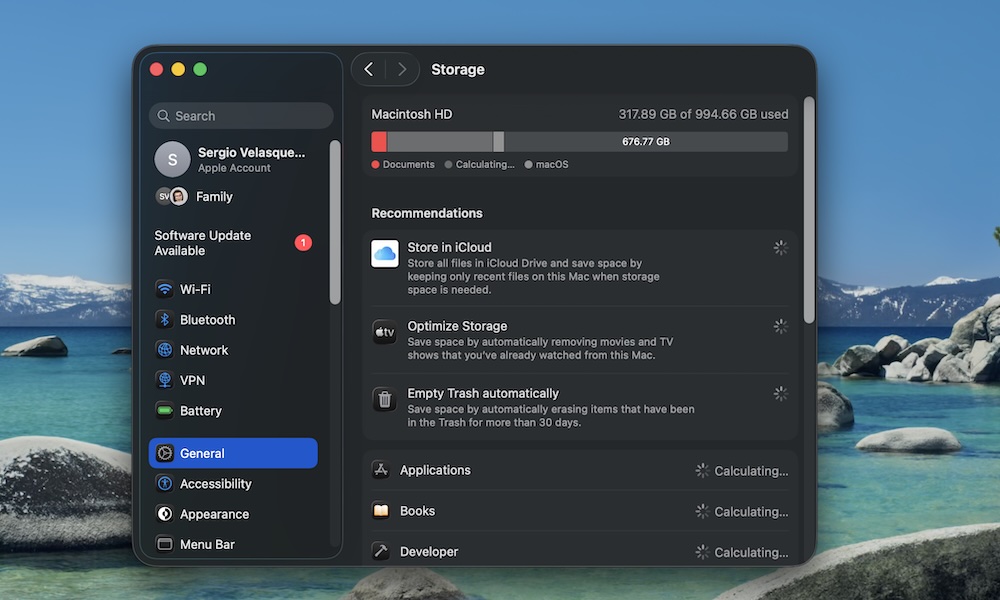
A nearly full solid-state drive (SSD) is one of the most common reasons a Mac starts to slow down. macOS uses free disk space as virtual memory. When that space disappears, everything from app launches to copying files will take longer.
If your Mac has already warned you that it's almost full, it's time to fix it.
- Click the Apple menu in the top left corner.
- Go to System Settings.
- Click on General.
- Go to Storage.
From there, you can follow your Mac's recommendations, which tell you to store more files in iCloud or empty your trash. Additionally, you can scroll down and click on any of the categories available, like Applications or Documents, and start deleting everything that you won't need anymore. It might take some time, but it will definitely be worth it. As a rule of thumb, try to keep at least 10–20% of your SSD free.
Update Your Apps Frequently
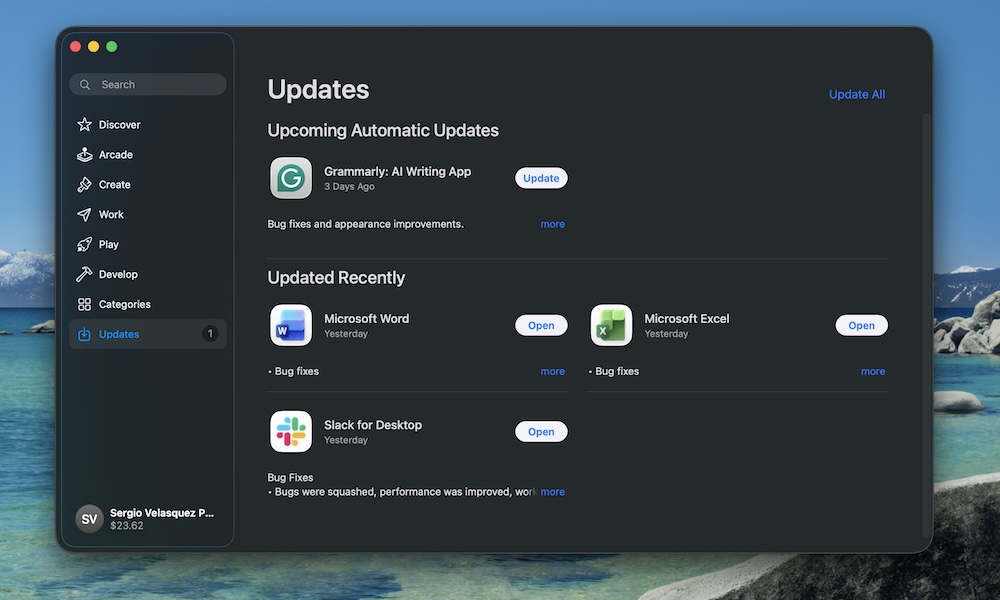
Running old apps on a new macOS version is a recipe for bugs, crashes, and performance issues. Developers release updates not just for features, but also for compatibility, security, and efficiency.
If you’re seeing odd glitches in one specific app after a macOS update, chances are it just needs an update. To update all the apps that you installed from the App Store, simply open the App Store app, click Updates on the left sidebar, and click on Update All in the top right corner.
For apps installed outside the App Store, open them and look for a Check for Updates option in the menu bar, or visit the developer’s website.
Keep Your MacBook Battery Healthy
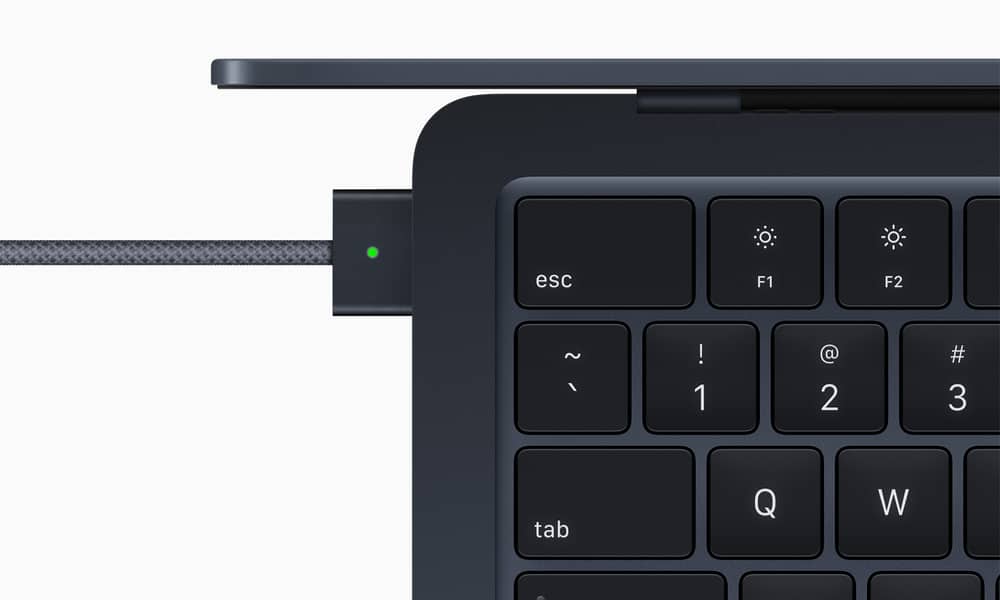
Laptop batteries don't last forever. They'll wear out slowly, no matter what you do, but bad habits can speed up their aging. Leaving a MacBook plugged in at 100% all the time, constantly draining it to 0%, or using it in extreme heat, are all things that will increase wear and shorten their lifespan.
A quick way to help your Mac while it's charging is to use Optimized Battery Charging. This feature will learn your charging patterns and automatically slow charging once your Mac reaches 80%. You can turn it on by going to System Settings > Battery > Battery Health and turning on Optimized Battery Charging.
Additionally, avoid letting the battery hit 0% regularly. It’s okay occasionally, but not as a routine.
If you’re unhappy with your MacBook's battery life and it's several years old, check Battery Health in the same settings. Once maximum capacity dips significantly and you see a note that service is recommended, the real fix may be a battery replacement.
Related: 12+ Ways to Boost Your MacBook’s Battery Life and Overall Lifespan
Manage Browser Extensions and Clear Browsing Data
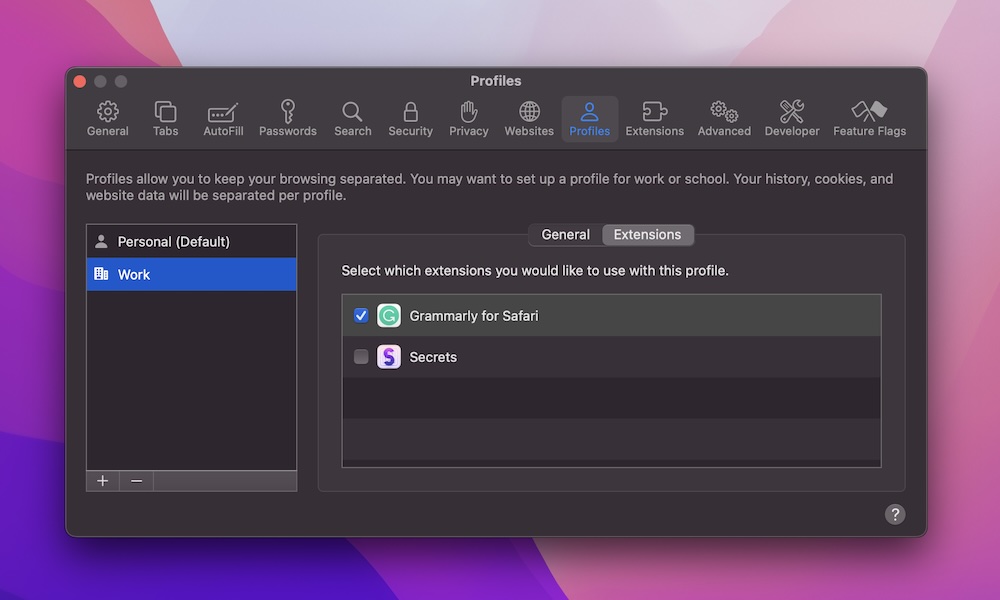
Safari, Chrome, and other browsers become slower and more memory-hungry over time, especially if you install every interesting extension you see. Some extensions constantly run scripts, add content to pages, or sync in the background.
If browsing feels sluggish or your fans spin up every time you open a few tabs, take a minute to get rid of extensions and sites that are too heavy for your Mac.
Open the Safari app and go to Safari > Settings > Extensions and turn off or uninstall anything you don’t truly use. Then go to Privacy > Manage Website Data, and click on Remove All (or selectively clear heavy sites).
Regularly Back Up Your Mac With Time Machine
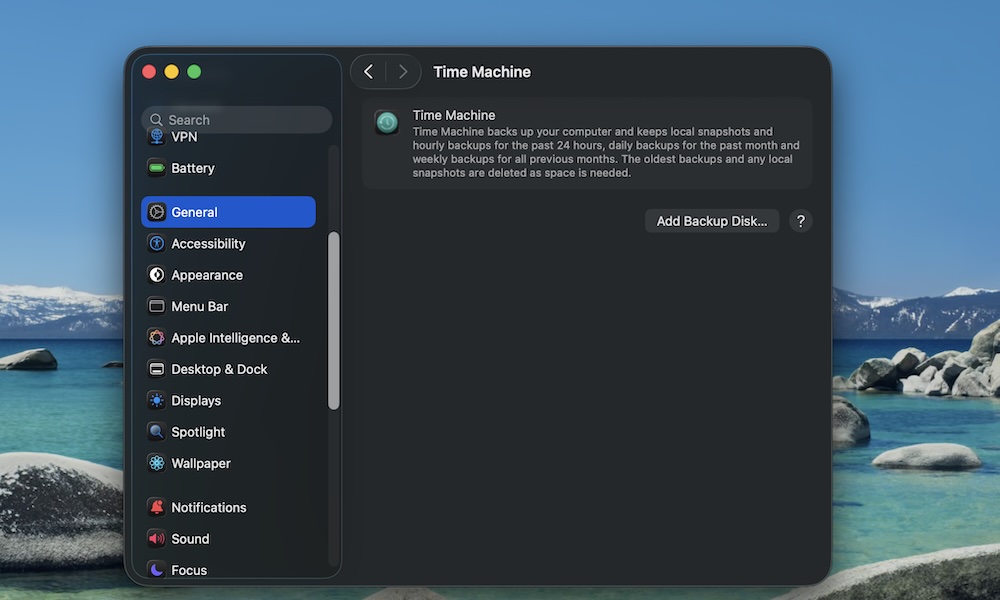
Backups won’t speed up your Mac, but they're a good practice to keep your files and settings safe. A good, recent backup may be all it takes to turn a faulty SSD or a bad software update into a minor annoyance rather than a disaster.
To use Time Machine on your Mac, plug in an external drive. Then, open System Settings > Time Machine. Choose your backup disk and turn on Automatic Backups.
After the first big backup, Time Machine quietly saves hourly, daily, and weekly snapshots as long as the drive is connected.
Keep Your Mac Clean

Keeping your software in good shape is important, but you also need to take care of the hardware.
It's essential to keep your Mac as clean as possible. That means you should avoid using it in places with a lot of dust, and keep your hands clean when you use it. Depending on which Mac you're using, you might end up with a keyboard with stuck keys or a dusty fan that does more harm than good.
Additionally, if you want to clean your Mac, we recommend using a soft cloth slightly dampened with water. You can also use 70% isopropyl alcohol to clean it. Avoid adding moisture to your Mac's openings, and remember to turn it off and unplug all its accessories before cleaning it.
For the keyboard, you can use a soft brush or compressed air. You may be tempted to remove the keys to clean under them, but we recommend against that on modern MacBooks unless you have specialized tools, as the plastic clips are fragile and easy to snap, which can permanently damage the keys.
Related: Are You Cleaning Your MacBook the Wrong Way? | 5 Tips & Tricks
Keep Your Mac in Tip-Top Shape
Mac maintenance doesn’t have to be complicated. You don’t need to spend money on cleaning apps or do some technical stuff. As long as you keep some good habits and make a few tweaks, you'll keep your Mac in tip-top shape almost automatically.
If you use even half of these tips in your routine, your Mac will feel faster, stay healthier, and easily last you many more years, without you ever having to think about maintenance.