
Regularly Back Up Your Mac With Time Machine
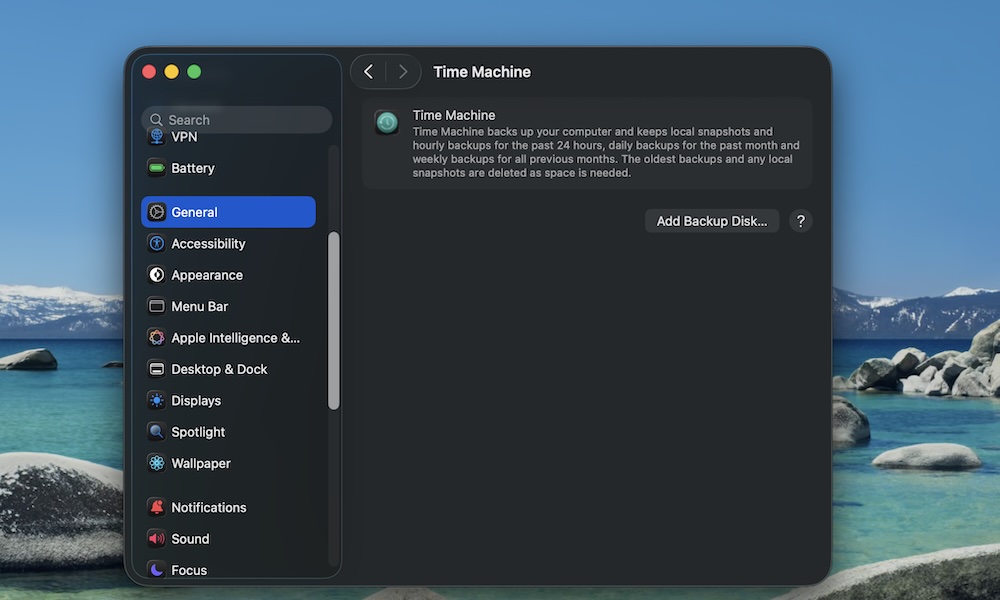
Backups won’t speed up your Mac, but they’re a good practice to keep your files and settings safe. A good, recent backup may be all it takes to turn a faulty SSD or a bad software update into a minor annoyance rather than a disaster.
To use Time Machine on your Mac, plug in an external drive. Then, open System Settings > Time Machine. Choose your backup disk and turn on Automatic Backups.
After the first big backup, Time Machine quietly saves hourly, daily, and weekly snapshots as long as the drive is connected.