
Start Using Safari Tab Groups so You Won’t Mix Your Tabs Anymore
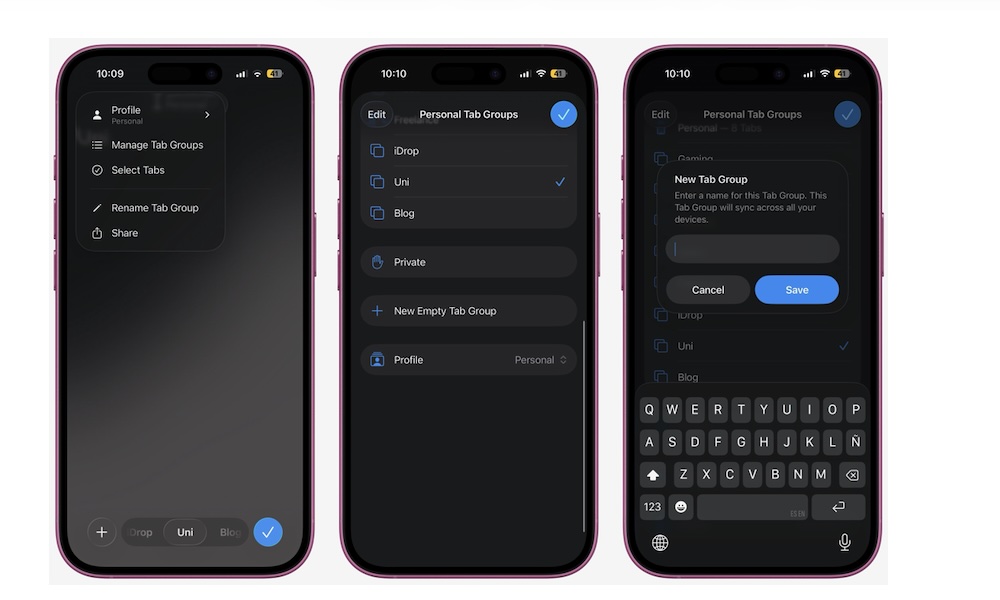
If your Safari has become a collection of 42 random open tabs, you’ll likely find it pretty hard to focus on a single thing at a time. Fortunately, your iPhone lets you make Tab Groups to keep things separate. For example, you could have one group for work, another for personal, and a third for planning a trip.
Here’s how you start using Tab Groups to keep all your browsing activity organized:
- Open Safari.
- If your address bar is at the bottom, swipe up from there to access all your tabs; otherwise, tap the Tabs button (two overlapping squares) in the bottom right corner.
- Tap the three-dot button in the top left corner of your screen.
- Select Manage Tab Groups.
- Tap on New Empty Tab Group.
- Add a name to your Tab Group and tap on Save.
Your iPhone will create the new Tab Group with no existing tabs. You can go back to all your open tabs and then tap the three-dot button again. From there, choose Select Tabs, and choose all the tabs you want to move.
Finally, tap on Move and select the Tab Group you just created.