
9 Tips to Be More Productive With Your iPhone
 Elijah Fox
If you feel like your iPhone is more of a distraction than a help, you’re not alone. Apple frequently adds powerful productivity features, but many of them are hidden away in your iPhone settings, where not everyone knows to look.
Luckily, that's easy to fix. By tweaking your iPhone, you can easily stop procrastinating as much and focus on the things you need to get done. To help you out, we've gathered some of the best tips to get you started. Read on for 9 settings to help turn your iPhone into a productivity tool.
Automate Your Focus Modes
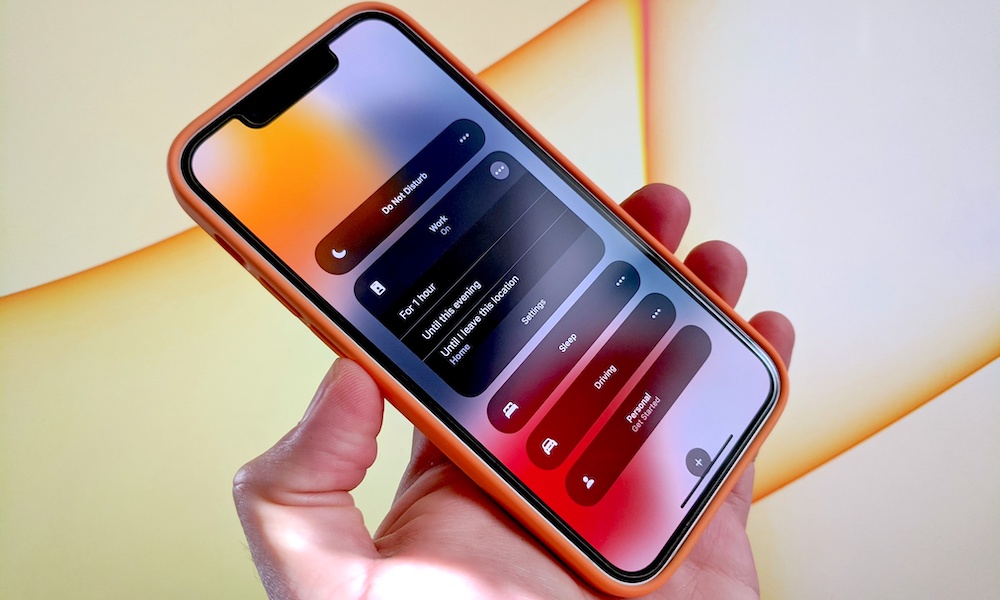
The standard Do Not Disturb feature is great if all you want is silence, but if you’re working, writing, or at the gym, you may not want to mute everything. That’s where Apple's Focus mode comes in.
The idea is pretty straightforward: you create a “Work” or “Writing” Focus mode and tell your iPhone that only specific people and apps can interrupt you when you're in that mode. Everyone and everything else gets temporarily ignored.
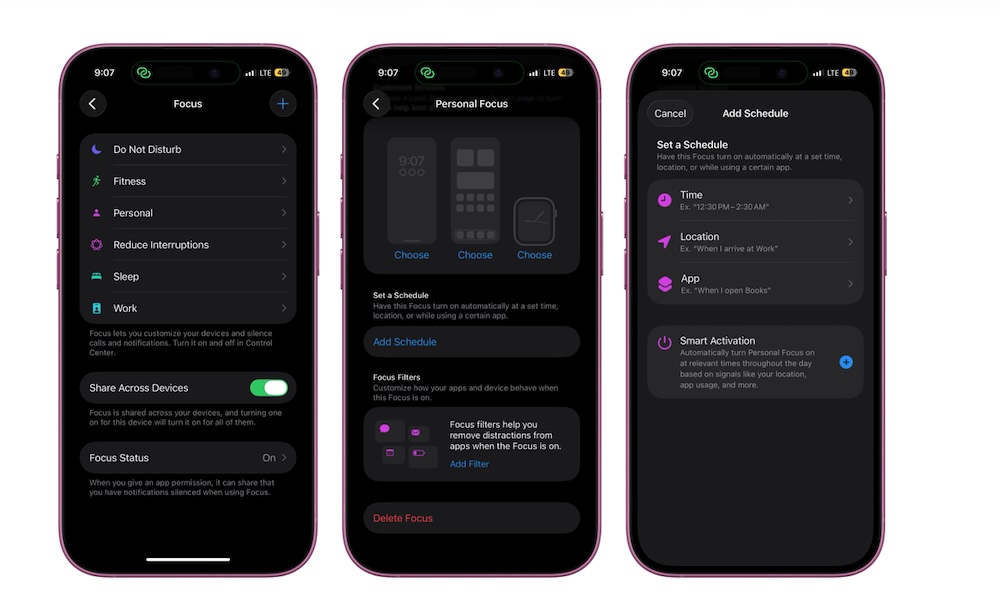
Creating a Focus mode is pretty easy: go to Settings > Focus, tap the plus icon in the top right, and follow the instructions on your screen.
However, there are a couple of tweaks you can make if you want to take your Focus modes to another level. First, you can add a schedule so your iPhone or other Apple devices turn it on automatically.
You can also add Focus filters. These let you adjust behaviors for specific apps and features whenever a Focus mode is active. For instance, you can filter your calendars so you won't see work stuff while you're having some personal time, or filter conversations to avoid being distracted by personal stuff while you're working. Here's where to find both options:
- Open the Settings app
- Scroll down and tap on Focus.
- Choose the Focus mode you want to customize.
- Scroll down, tap Add Schedule, and choose how you want your Focus mode to turn itself on. You can use a schedule by time, location, or when you open a specific app.
- Go to Add Filter and choose an available option you want to adjust.
Once you're done, you can exit the settings app and try your new Focus mode out.
Add Quick Notes to Your Control Center
How many times have you thought of something that you know you need to remember for later, but forget to write it down? Trust us, you're not alone. Most people don’t always have time to unlock their iPhones, swipe around, find the Notes app, and then write their note.
This means you might miss something important you needed to do, or forget your next million-dollar idea. Fortunately, Apple has a quick fix for this: Quick Notes.
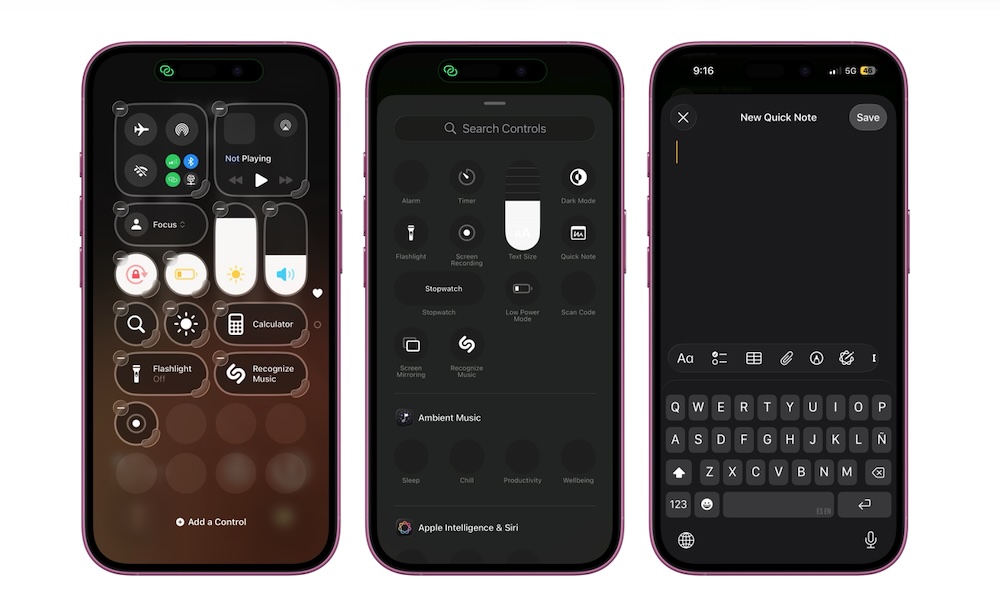
You can add a Quick Note control to your Control Center that will let you open a new note and write down your thoughts from just about anywhere. These notes will be stored under a Quick Note category in the Notes app.
Quick Notes are incredibly easy to use, but you'll need to add the button to your Control Center to get at them. Here's how:
- Open your Control Center by swiping down from the top right corner of your screen.
- Tap the plus icon in the top left corner.
- Tap on Add a Control at the bottom of your screen.
- Tap the Quick Note control, which should be at the top of the list. If not, you can always use the search bar to find it.
And that's it. You can now create notes almost instantly whenever you need to. When you tap the control, a new note will pop up at the top of your screen. You can write whatever you want and then hit Save to save it for later.
Use the Reminders App Like a Power User
The Reminders app is way more powerful than most people realize. Not only can you create different lists to organize your personal and work life, but the reminders themselves are surprisingly versatile.
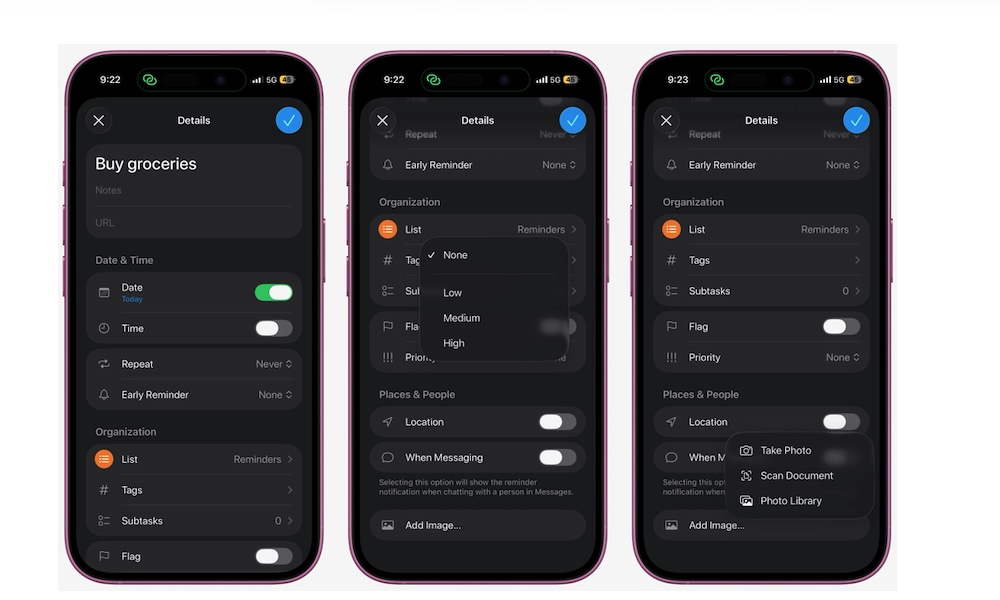
For instance, you can create a reminder and add a subtask, a URL, or even a picture. But the most useful thing is that you can set a reminder to trigger when you chat with specific people, visit a specific place, or even when you're getting in or out of your car. When iOS 26.2 comes out later this month, you'll even be able to create "Urgent" reminders that notify you with Clock-like alarms.
To customize a reminder, simply open the Reminders app and create or select one. Tap the i icon next to your reminder, and start customizing it however you want. There are many options to choose from, so play around with it and take your Reminders game to the next level.
Back Tap = Secret Productivity Button
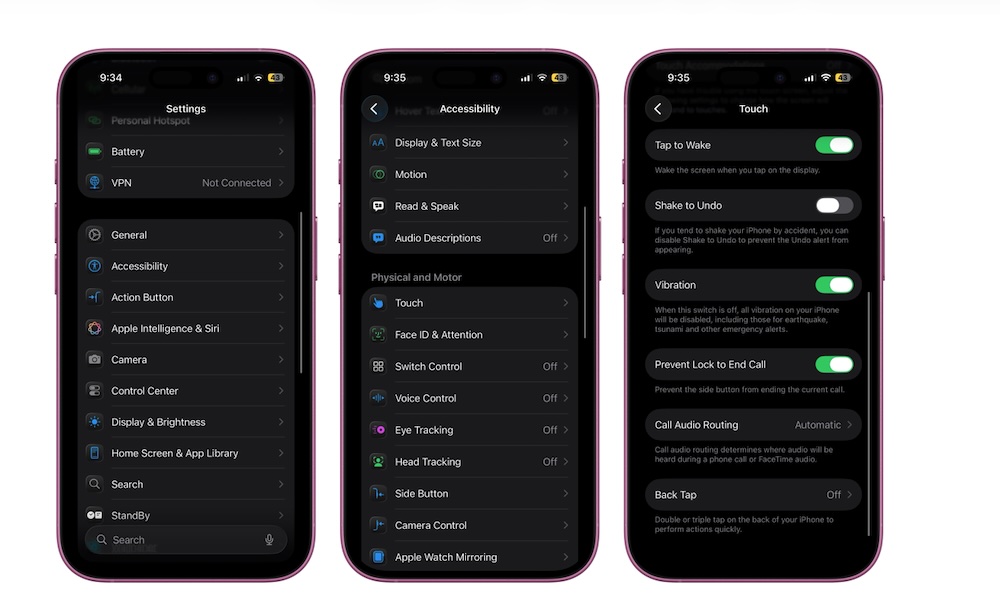
Back Tap is one of those accessibility features that most people will love once they try it — and it can make productivity a bit easier.
This feature lets you assign functions that are triggered by double-tapping or triple-tapping the back of your iPhone. For example, you could open Notes, start a timer, run a Shortcut, and more.
This basically gives you two extra buttons on your iPhone, which you can customize to do anything you need. Here's how to set it up:
- Open the Settings app.
- Scroll down and go to Accessibility.
- Scroll down and, under Physical and Motor, tap Touch.
- Go to the bottom and tap on Back Tap.
- Tap Double Tap or Triple Tap, and then choose the action you want your iPhone to do.
Use Live Text so You Never Retype Again
You know when someone sends you a photo of a phone number or a slide in a meeting, and you have to retype it? Well, you don't anymore; the iPhone can read text from photos, so you can just copy and paste it.
This is thanks to a feature called Live Text. With it, you can tap any text in an image or in the Camera app, then copy it. Likewise, if you see a phone number, you can call it instantly instead of entering it in the Phone app.
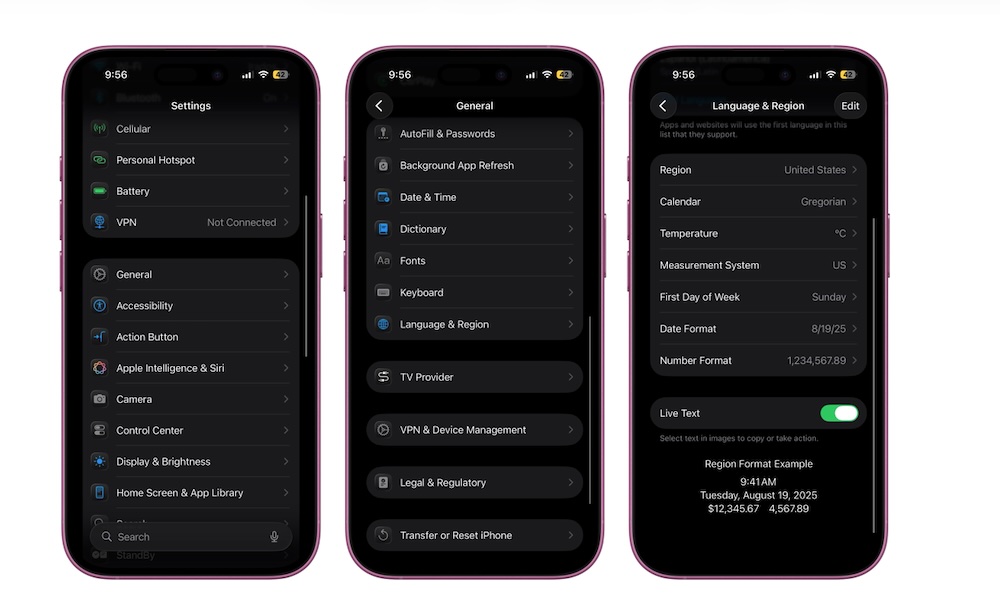
Live Text should be turned on by default, but you can enable or disable it by doing the following:
- Open the Settings app.
- Scroll down and go to General.
- Scroll down again and tap on Language & Region.
- Go down to the bottom and turn on Live Text.
Let Your iPhone Transcribe Your Thoughts
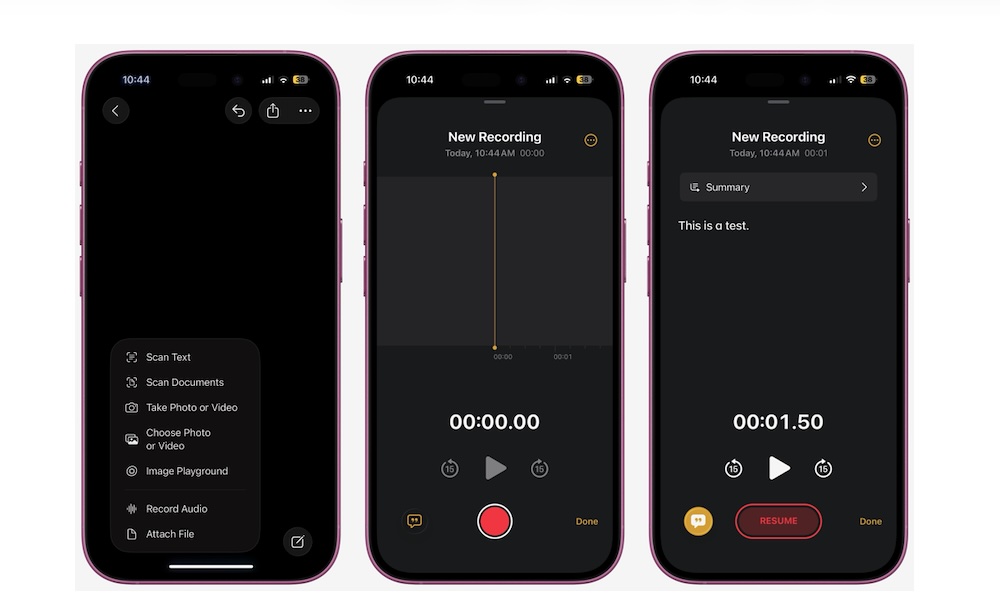
One of the best features Apple has added in the last couple of years is the ability to use transcription in apps like Notes, Voice Memos, and Journal. With the tap of a button, your iPhone will automatically start recording and create a completely accurate transcription of your words.
You can then read the transcription or use it however you want, which is perfect for long meetings or classes when you may not have been paying full attention.
This feature is available in several Apple apps, but to give you an example, here's how to use it in the Notes app:
- Open the Notes app.
- Create a new note or go to an existing one.
- Tap the Attachments button (the little paper clip) at the bottom of your screen.
- Select Record Audio.
- Start recording your voice or anything you want.
- When you finish, tap on Done.
Now you'll see your voice memo attached to your note. You can open it to listen to it or tap the transcription button in the bottom left corner to read it instead.
Start Using Safari Tab Groups so You Won't Mix Your Tabs Anymore
If your Safari has become a collection of 42 random open tabs, you'll likely find it pretty hard to focus on a single thing at a time. Fortunately, your iPhone lets you make Tab Groups to keep things separate. For example, you could have one group for work, another for personal, and a third for planning a trip.
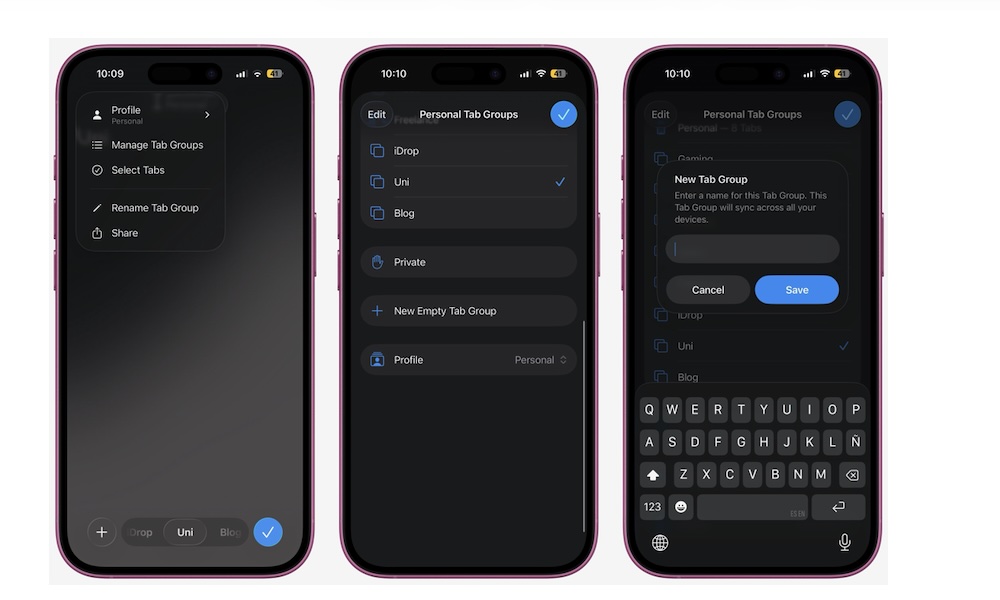
Here's how you start using Tab Groups to keep all your browsing activity organized:
- Open Safari.
- If your address bar is at the bottom, swipe up from there to access all your tabs; otherwise, tap the Tabs button (two overlapping squares) in the bottom right corner.
- Tap the three-dot button in the top left corner of your screen.
- Select Manage Tab Groups.
- Tap on New Empty Tab Group.
- Add a name to your Tab Group and tap on Save.
Your iPhone will create the new Tab Group with no existing tabs. You can go back to all your open tabs and then tap the three-dot button again. From there, choose Select Tabs, and choose all the tabs you want to move.
Finally, tap on Move and select the Tab Group you just created.
Use Apple Calendar to Never Be Late Again
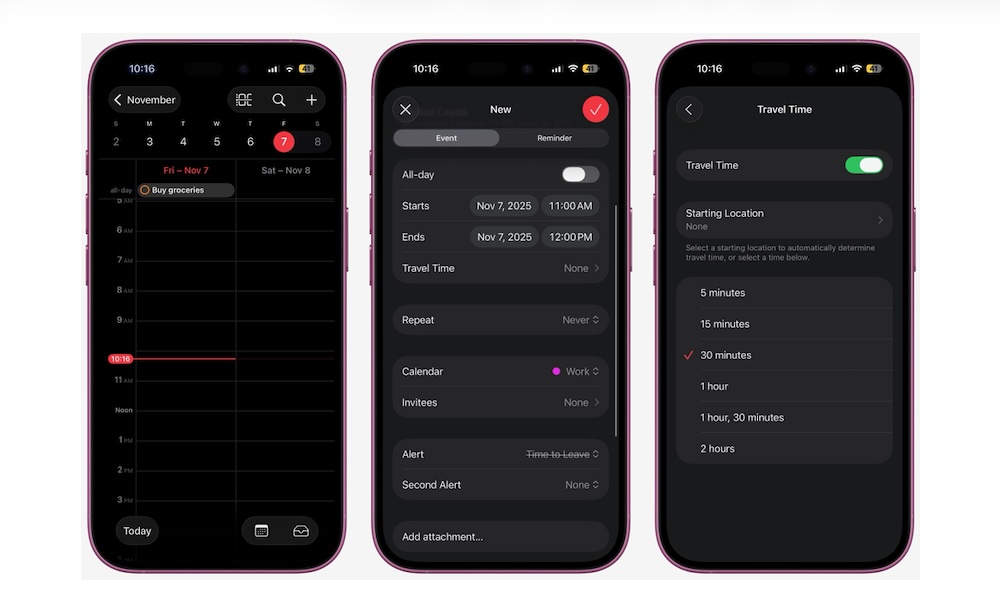
Apple's Calendar app can give you an estimate on how long it’ll take you to get somewhere and tell you when to leave. It pulls data from Apple Maps, so it's as accurate as it gets.
For this feature to work, you'll need to enter the exact location of your event or appointment. Once you have that, here's how to use it:
- Open the Calendar app.
- Tap the plus icon in the top right to create a new event.
- Enter your event's name and location.
- Scroll down and tap on Travel Time.
- Turn on Travel Time.
- Enter your starting location.
- Now choose how you'll travel to your destination.
- Go back and finish creating the event.
- When you're done, tap the check mark in the top right corner of the screen.
Start Using Screen Time the Right Way
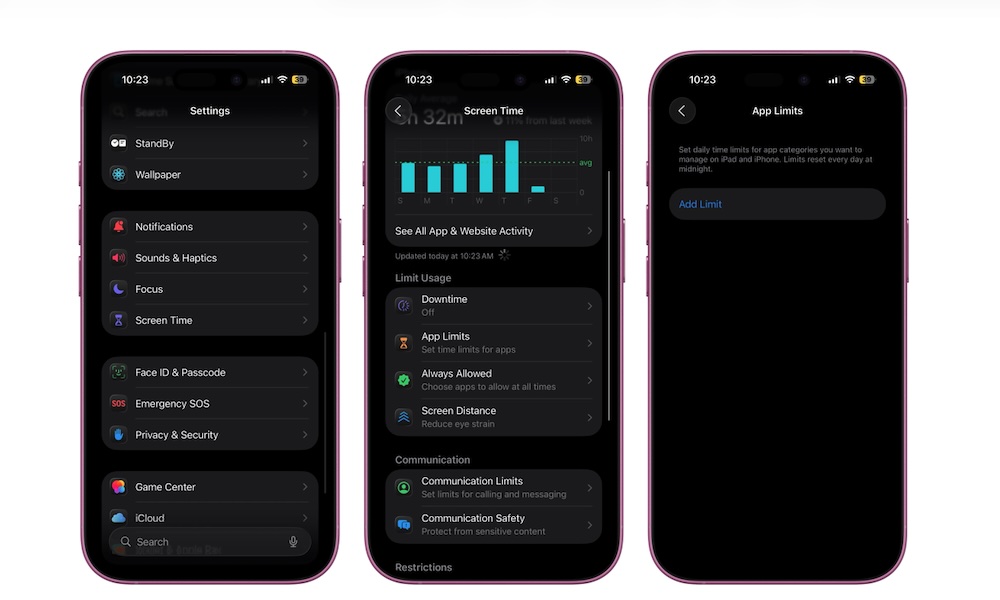
Screen Time is a great iPhone feature to find out how much time you've spent on your iPhone each week. While that might not seem like much, it does give you a ton of useful information to figure out which apps are wasting most of your time.
The best part about Screen Time is that you can limit the time you spend on an app each day by creating App Limits.
With these limits, your iPhone will "block" an app after a specific time you choose. Sure, you can still unlock the app and use it normally, but at least you'll get a small nudge to get back to work if you've been wasting time playing games or scrolling through social media.
- Open the Settings app.
- Scroll down and go to Screen Time.
- Scroll down again and tap on App Limits.
- Tap on Add Limit.
- Choose the app or category you want to block, then tap Next.
- Choose how much time you can use this app or category during the day. You can also tap Customize Days in case you want to allow yourself to use them more during your days off.
- When you're done, tap the check mark in the top-right corner of your screen.
Become More Productive Little By Little
All of the tips on this list will help you become more productive just by changing a couple of habits you may already have.
Sure, it's easier said than done. But by reducing a few distractions and automating things like your Focus mode, you'll be more likely to stay focused without even realizing it.
Of course, even if you use all of these tips at once, you might still not be productive; you also need to do your part and try to be more mindful at work or school so you can actually become more productive.