
Audit Notification-Heavy Apps
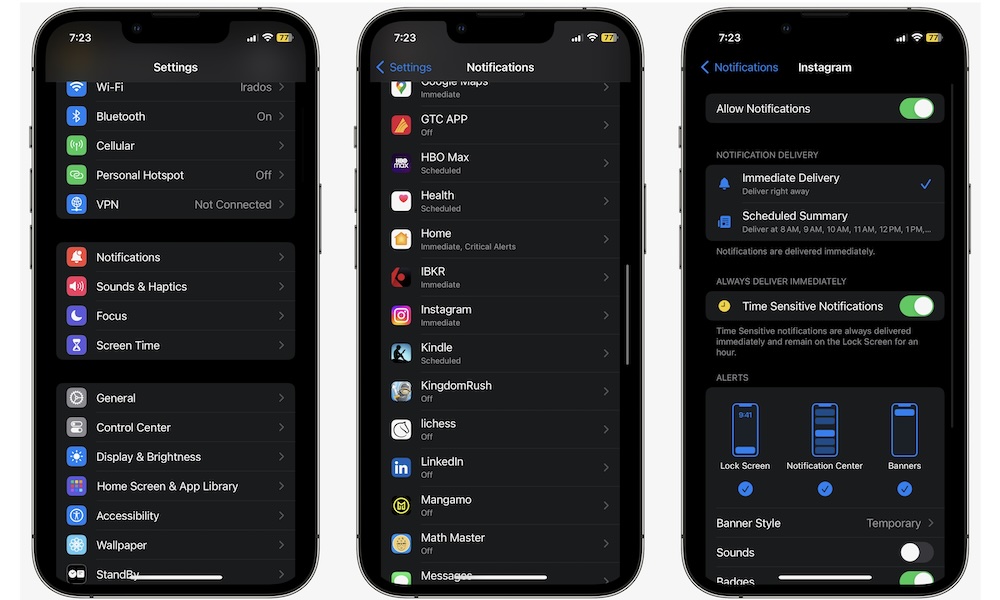
Let’s face it: Most notifications are not just noise. They’re small alerts that use your iPhone’s haptics or sounds while also draining battery life. Each alert can light up your screen, trigger haptics, pull new data, and keep your phone active for longer than it needs to be.
Chat apps, social apps, shopping apps, and news apps are the usual culprits. The fix isn’t to live in silence, but to choose what deserves immediate attention and what can wait until you open the app.
Even a small change, like disabling Lock Screen notifications for the apps that send the most notifications, can reduce how often your iPhone wakes itself up throughout the day.
- Open the Settings app.
- Scroll down and tap on Notifications.
- Select the apps that send you the most (useless) notifications.
From here, you have a couple of options. For starters, you can turn off notifications completely. Or you can choose to get your notifications in a Scheduled Summary. When that happens, your notifications will still appear on your Notification Center, but they won’t bother you until a specific time of the day, which you choose.
Pro Tip: You can also usually get more fine-grained control by checking the notification settings and related features in individual apps. For example, group chats can be one of the worst offenders for notification overload, so try muting these individual conversation threads in Messages or WhatsApp rather than turning off all notifications. This ensures you won’t miss any important messages sent directly to you, but your iPhone also won’t be buzzing away and lighting up the screen all day while everyone else is chatting away.