
Shorten Auto-Lock Timeout
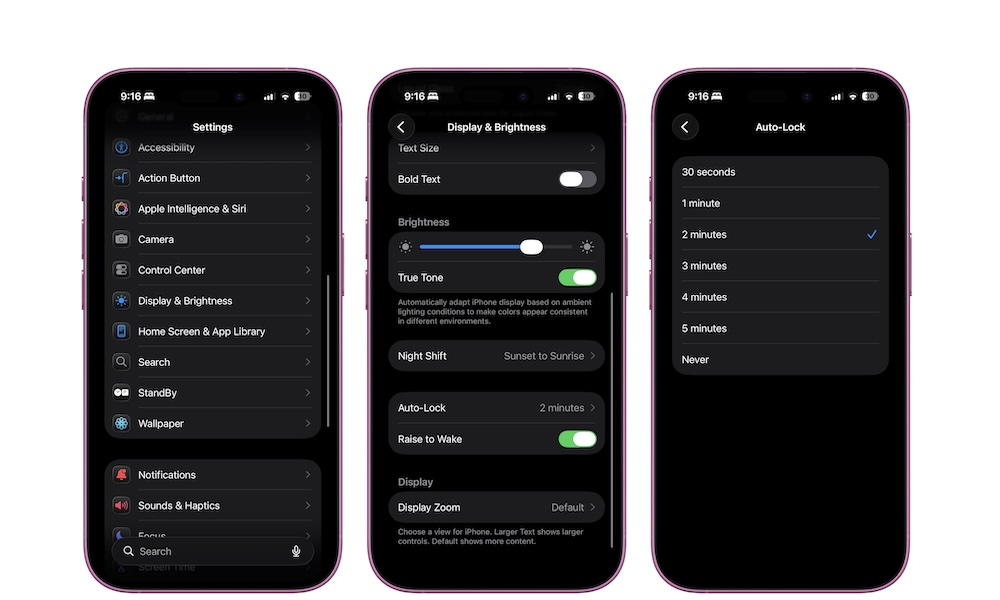
If there’s one single setting that makes the biggest battery difference, it’s this one. Your display is one of the biggest battery drains on an iPhone (and any modern device, for that matter). The longer it stays on after you stop using it, the more power you’re consuming for nothing.
A shorter Auto-Lock means your iPhone goes to sleep more quickly when you’re done reading or you get distracted. It doesn’t make your iPhone slower. It doesn’t affect performance. It just prevents wasted screen-on time. It’s a win-win situation.
You can shorten your auto-lock time to as little as 30 seconds. If that feels like a little too much, pick the shortest option you won’t hate. The best setting is the one you’ll keep. This is how you can change it.
- Open the Settings app.
- Scroll down and tap on Display & Brightness.
- Scroll down and tap on Auto-Lock.
- Select the time you want.
Keep in mind that if you are using Low Power Mode, you won’t be able to change the Auto-Lock time, as it’s set to 30 seconds by default to save power.
Pro Tip: You don’t need to set a longer auto-lock time on a modern iPhone just to prevent the screen from shutting off while you’re reading something as long as you have Attention Aware Features toggled on under Settings > Face ID & Passcode. When this setting is enabled — which it is by default — your iPhone will use the front-facing True Depth camera to avoid dimming or locking the screen as long as you’re looking at it.