
Set Location Access to “While Using”
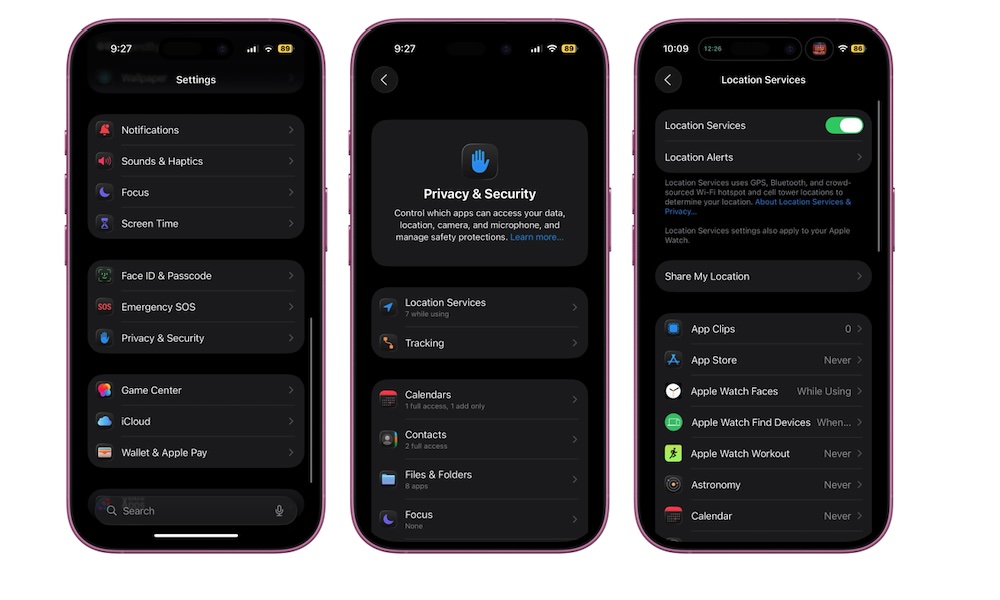
Location Services is another battery trap because it can consume power without you even knowing about it. A lot of apps ask for constant access to your location even when they don’t need it, and once that’s granted, they can ping your location in the background to keep things running behind the scenes.
Most apps should be set to While Using, which means the app gets access to your location only when you’re actually in it, which is what most apps need. You’ll still get maps, local recommendations, and location-based features when you want them, without your iPhone acting like a tracking device all day.
There’s also more to this than just reducing the stress on your battery. It’s even more important for privacy. That’s where you should also pay attention to Precise Location, which can reduce unnecessary oversharing. After all, most apps don’t need your exact GPS coordinates to function; an approximate location is good enough for things like weather, news, and deals.
Here’s how to manage your location services:
- Open the Settings app on your iPhone.
- Scroll down and tap on Privacy & Security.
- Tap on Location Services at the top.
- Select an app you want to adjust the location setting for.
- Choose While Using the App (or if it really doesn’t need it, Never).
- While you’re here, toggle off Precise Location if the app only needs to know your general area.
If you want to go above and beyond, you can simply turn off Location Services altogether, but like Background App Refresh, it’s important to remember this is a global setting that will also block apps like Apple Maps and Google Maps and render them useless for navigation.