
Clean Up Safari: Tabs, History, and Website Data
If Safari feels like it’s always getting stuck, pages take forever to load, or you’re experiencing random crashes, your browser might simply be overloaded. Hundreds of tabs and years of cached data will eventually do that to you.
Fortunately, it’s really easy to make Safari work faster again. First, you can close as many tabs as possible. If you feel like you’ll need them later, you can always bookmark them so you don’t lose them.
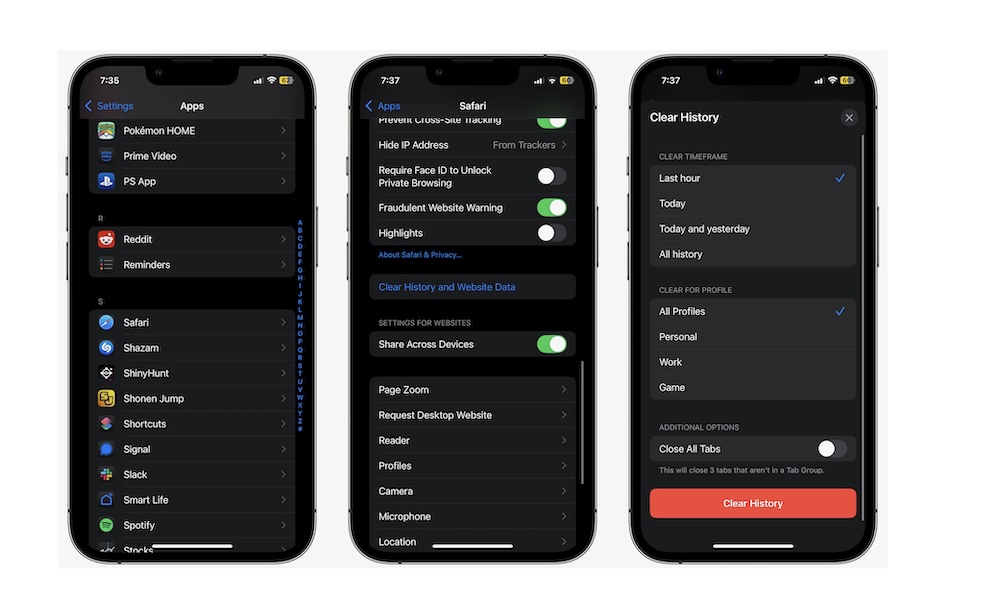
Additionally, you can also delete all your history and website data. Without all this information, the Safari app should be as good as new. This is how you do it:
- Open the Settings app.
- Scroll down and go to Apps (you can skip this if you’re still using iOS 17 or an earlier version)
- Search for the Safari app.
- Scroll down and under History and Website Data, tap on Clear History and Website Data.
- Choose how much of your history and data you want to clear, and then tap on Clear History.
You’ll be logged out of some sites, so you may need to sign in again, but Safari should feel noticeably lighter afterward.
If you feel like you need to keep this data with you, you can select the Export button before you clear Safari, so you always have a backup.