
Check Your Storage (A Full iPhone Will Always Feel Slow)
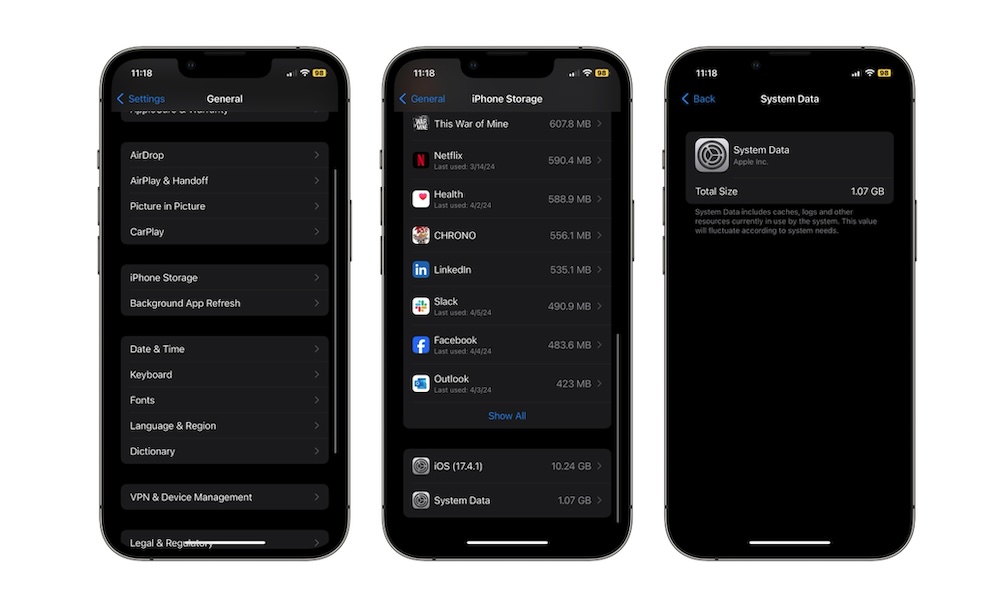
If your iPhone is constantly alerting you that your storage is full, its performance will definitely suffer over time. iOS, just like many other operating systems, needs free space for temporary files, caches, and updates. Once things get tight, everything from opening Photos to installing apps can slow down.
Needless to say, it’s time to clean up your device. Start by seeing what’s actually taking up space and letting iOS help you clean it up:
- Open the Settings app.
- Scroll down and go to General.
- Tap on iPhone Storage.
- Wait a few seconds for everything to load. Then, you’ll see what type of data is consuming most of your storage.
From there, you can start deleting files or photos to free up some space. Your iPhone will also show you a few Recommendations that you can use to quickly get rid of things that are wasting your space.
You can also scroll down and see all the apps and games you have installed on your iPhone. You can select them individually and delete them for good. If you don’t want to lose all your data, you can select to offload the app so it still reduces the amount of storage it consumes.
Aim to free at least 20% of your iPhone’s storage. The more the better, but this should be the minimum to aim for.