
iPhone Running Slow? Try These 9 Fixes Before You Upgrade
 Farknot Architect / Adobe Stock
If your iPhone suddenly feels like it’s getting slower by the minute, you’re not alone. Even newer models can start to lag after a year or two. That’s not because the hardware is done and you need to upgrade already, but because storage fills up, apps have a bunch of background tasks, and certain settings quietly work against you.
The good news is that you usually don’t need to spend hundreds of dollars on a new iPhone just to get things running smoothly again.
Instead, you can treat your iPhone a bit like a computer: give it some room to breathe, clean up the software clutter, and reset a few things that are running in the background. Much of this might sound super technical, but it couldn’t be any easier. Anyone can do it, and it’ll only take you a few minutes to get started.
Read on for 9 ways to help declutter and speed up your iPhone.
Check Your Storage (A Full iPhone Will Always Feel Slow)
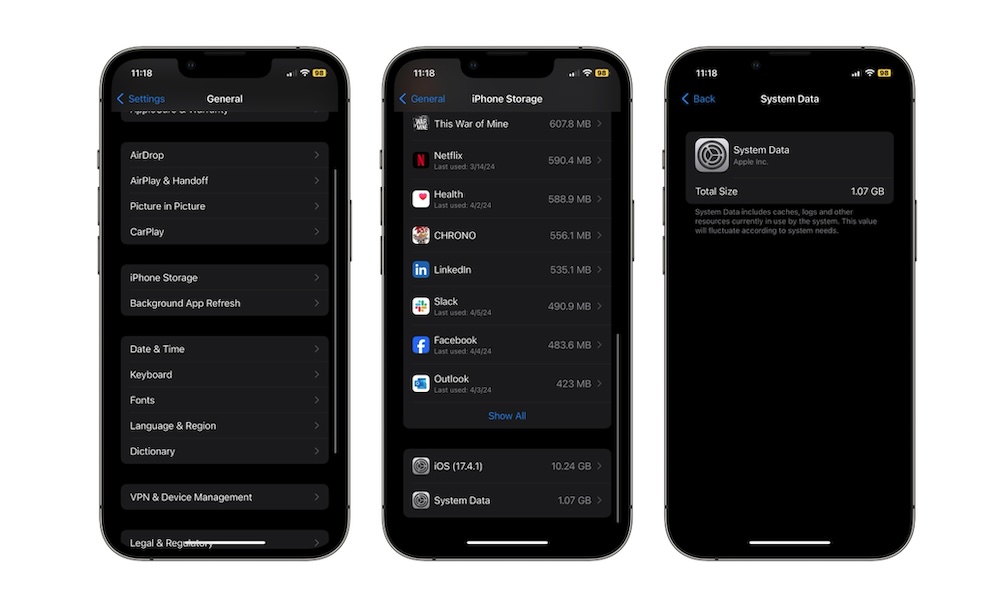
If your iPhone is constantly alerting you that your storage is full, its performance will definitely suffer over time. iOS, just like many other operating systems, needs free space for temporary files, caches, and updates. Once things get tight, everything from opening Photos to installing apps can slow down.
Needless to say, it’s time to clean up your device. Start by seeing what’s actually taking up space and letting iOS help you clean it up:
- Open the Settings app.
- Scroll down and go to General.
- Tap on iPhone Storage.
- Wait a few seconds for everything to load. Then, you’ll see what type of data is consuming most of your storage.
From there, you can start deleting files or photos to free up some space. Your iPhone will also show you a few Recommendations that you can use to quickly get rid of things that are wasting your space.
You can also scroll down and see all the apps and games you have installed on your iPhone. You can select them individually and delete them for good. If you don’t want to lose all your data, you can select to offload the app so it still reduces the amount of storage it consumes.
Aim to free at least 20% of your iPhone’s storage. The more the better, but this should be the minimum to aim for.
Restart Your iPhone to Clear Minor Glitches
When was the last time you actually turned your iPhone off on purpose? Many of us just let it run for weeks or months. Over time, small bugs, stuck background processes, and memory leaks can add up and make everything feel sluggish.
A proper restart is one of the easiest fixes you can try before anything more drastic.
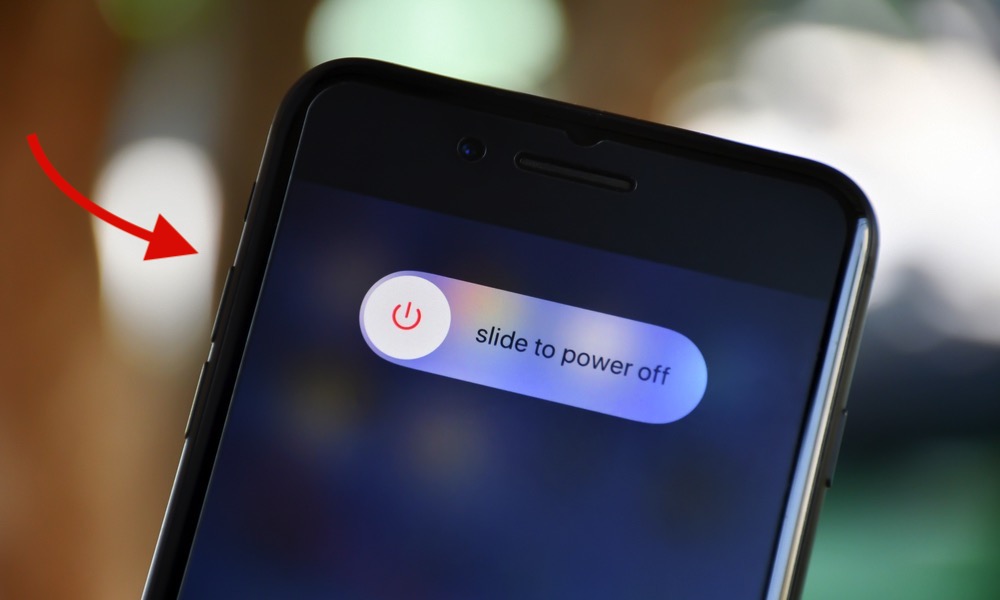
To turn off your iPhone (with Face ID), simply press and hold the Side button and the volume up or volume down button for a couple of seconds. If you have an iPhone with Touch ID, simply press the side or top button for a couple of seconds.
Next, drag the Power Off slider to the right to turn off your iPhone. Leave it turned off for 10 to 15 seconds, and then press and hold the side button until the Apple logo shows up on your screen.
After your iPhone boots back up, open the apps that were giving you trouble and see if they feel snappier. It’s not a magic cure, but it often clears weird short-term issues.
Update to the Latest Version of iOS
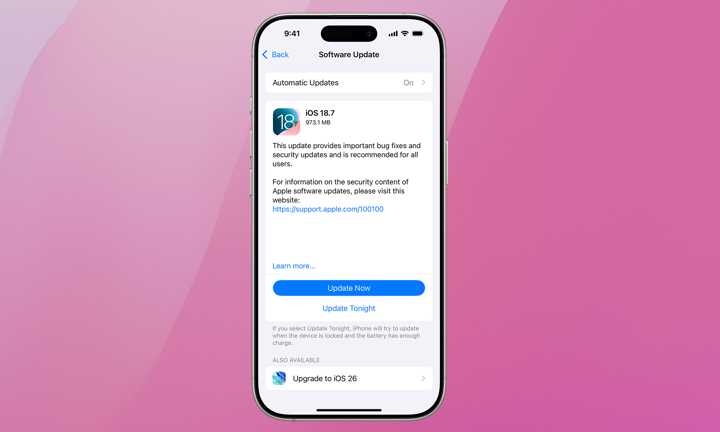
If you’re still running an older version of iOS, you might be fighting bugs Apple has already fixed. Minor updates often include performance improvements, better memory management, and security patches that are often invisible but incredibly useful.
Needless to say, you should update your iPhone. Here’s how:
- Open the Settings app.
- Scroll down and go to General.
- Go to Software Update.
- If there’s an update available, tap on Download and Install.
Right after an update, things can start to feel better, as your iPhone might have new fixes to get rid of bugs that were causing it to slow down.
Update all Your Existing Apps
Sometimes, iOS isn’t the problem, but rather the apps that you’re using. You might still be running an outdated version that doesn’t work well with iOS 26. Because of this, it’s important to keep all your apps as up to date as possible.
You can go to the App Store and manually update your most important apps. However, that might be a bit too slow and boring for most of us. Here's a faster way:
- Open the App Store
- Tap on your profile picture in the top right corner.
- Scroll down and you’ll see all the apps that can be updated right now. You can select which ones you want to update, or choose Update All.
Limit Background App Refresh
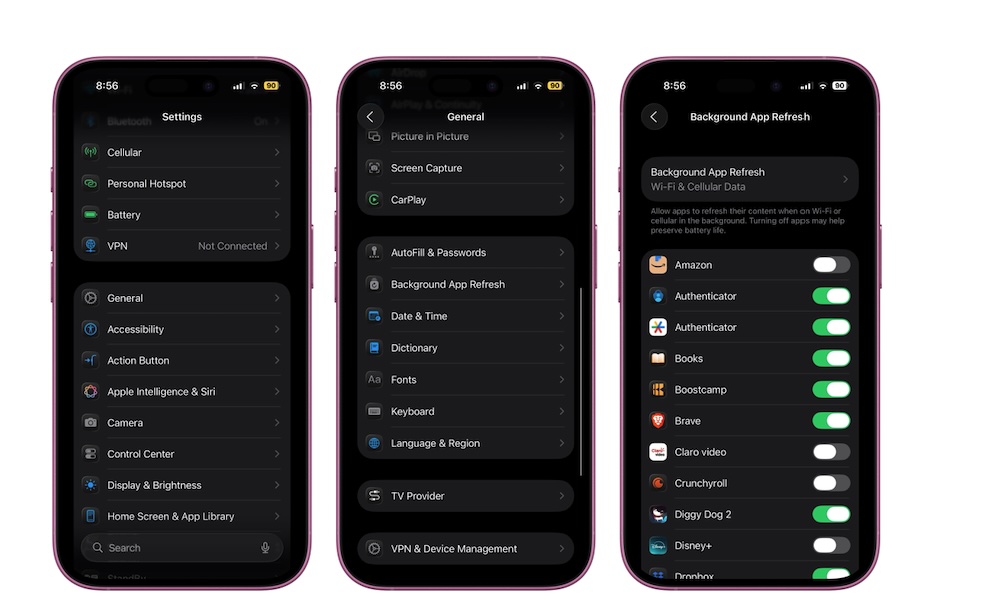
A big source of slowdowns and battery drain is apps doing work when you’re not using them. Many social, shopping, and news apps love to frequently update content even when they're not running. That adds up, especially on older devices.
You don’t have to turn Background App Refresh off completely, but you should be picky about which apps can use it. Here's where to find this:
- Open the Settings app.
- Scroll down and go to General.
- Tap on Background App Refresh.
- Turn off Background App Refresh on individual apps or disable it altogether, so you don’t have to worry about it.
You can keep it turned on only for the essential stuff like messaging, navigation, or health apps. However, things like shopping or social media apps don’t need to be constantly updating content for you. The fewer apps starting up and working in the background, the more responsive your iPhone will feel when you actually want to use it.
Manage Location Services
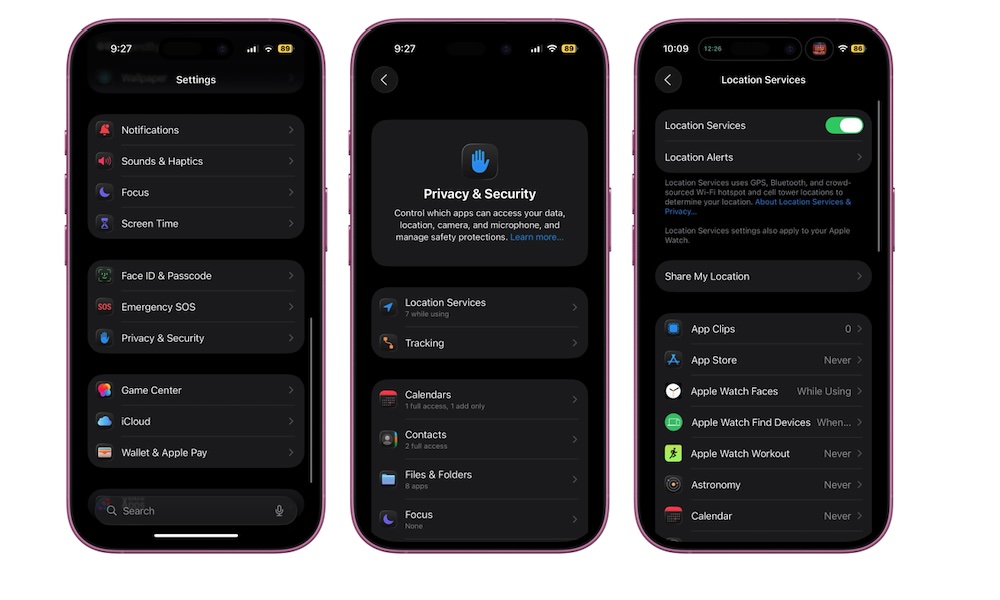
Location Services is another feature that will quietly slow down your iPhone if you aren’t careful. Some apps genuinely need constant access to your location, like Apple Maps or Uber. Others asked for it when they never really needed it again.
Letting everything track you all the time is bad for privacy, but it can also affect performance if it causes them to start up needlessly whenever your location changes. Luckily, you can manage which apps get access to your location by doing the following:
- Open the Settings app.
- Scroll down and go to Privacy & Security.
- Tap on Location Services.
- Scroll through the list of apps and tap the ones that don’t need to know your location.
- Change Always to While Using the App or Ask Next Time for anything that doesn’t need 24/7 tracking.
- Also, turn off Precise Location for apps that only need your general area (like weather apps).
Clean Up Safari: Tabs, History, and Website Data
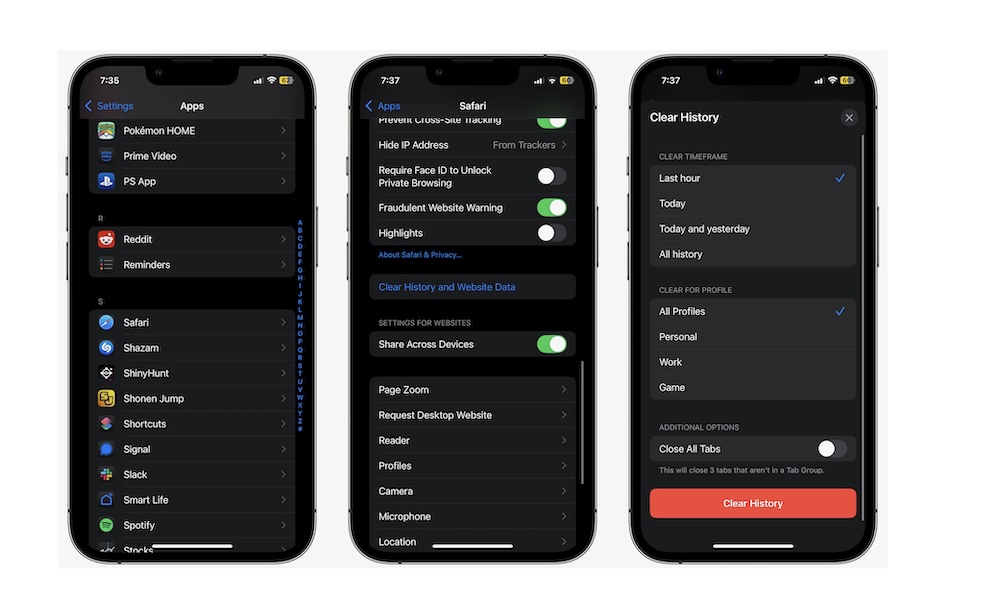
If Safari feels like it’s always getting stuck, pages take forever to load, or you're experiencing random crashes, your browser might simply be overloaded. Hundreds of tabs and years of cached data will eventually do that to you.
Fortunately, it’s really easy to make Safari work faster again. First, you can close as many tabs as possible. If you feel like you’ll need them later, you can always bookmark them so you don’t lose them.
Additionally, you can also delete all your history and website data. Without all this information, the Safari app should be as good as new. This is how you do it:
- Open the Settings app.
- Scroll down and go to Apps (you can skip this if you're still using iOS 17 or an earlier version)
- Search for the Safari app.
- Scroll down and under History and Website Data, tap on Clear History and Website Data.
- Choose how much of your history and data you want to clear, and then tap on Clear History.
You’ll be logged out of some sites, so you may need to sign in again, but Safari should feel noticeably lighter afterward.
If you feel like you need to keep this data with you, you can select the Export button before you clear Safari, so you always have a backup.
Turn Off Unnecessary Visual Effects
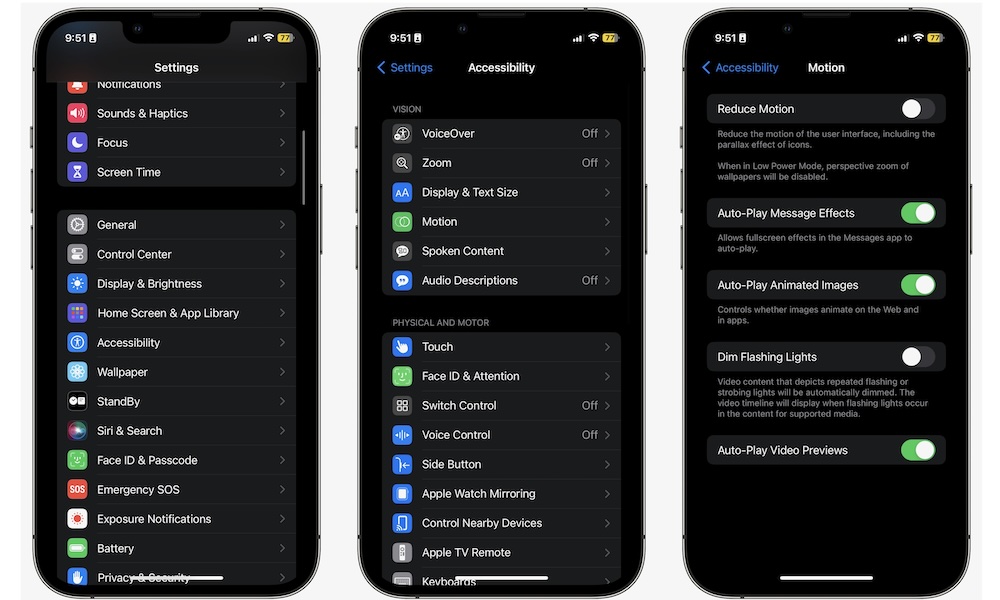
The fancy animations and blur effects that Apple and many fans love can be a double-edged sword. They look great on a brand-new iPhone, but on older hardware, they can feel stuttery and slow — and that's even more true with this year's new Liquid Glass interface. If your iPhone hesitates when you open apps or switch between screens, it might be time to tone down these animations, no matter how much you like them.
Here's how to disable some of these animations:
- Open the Settings app.
- Scroll down and go to Accessibility.
- Under the Vision section, tap on Motion.
- Turn on Reduce Motion.
This will feel weird at first, but the longer you use it, the more you’ll get used to it. It’s a small change, but reducing the animations between transitions can help your older devices.
As a Last Resort: Back Up, Erase, and Set Up Your iPhone From Scratch
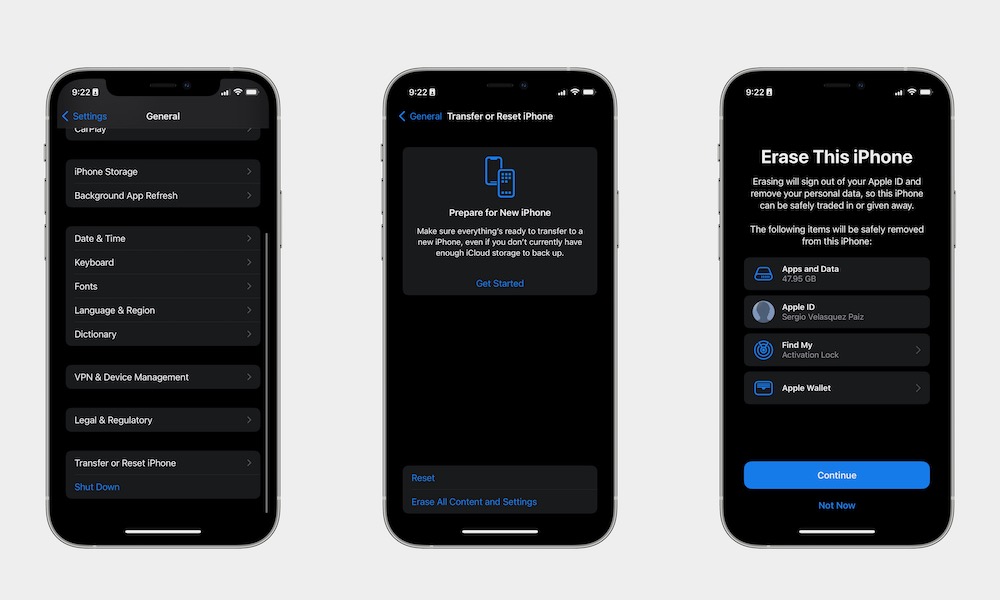
If you’ve tried everything above and your iPhone still feels unreasonably slow, a factory reset might be the only way to shake off the lag. Instead of restoring an old backup (and potentially bringing the problem back with it), you can set the device up as if it were brand new.
Of course, that doesn’t mean that you need to lose all the data your iPhone already has. We recommend that you back up your iPhone before doing this to avoid any losses. You can do this by going to Settings > Apple Account (Apple ID) > iCloud > iCloud Backup, and then tap Back Up Now.
Once you've done this, you can erase your iPhone:
- Open the Settings app.
- Scroll down and go to General.
- Scroll down and tap on Transfer or Reset iPhone.
- Tap on Erase All Content and Settings, and follow the instructions on your screen.
Yes, it takes time — but it also gives you a genuinely fresh software environment on hardware you already know. For some older devices, this is the closest you’ll get to that new iPhone feeling without actually buying one.
Keep Your iPhone Fast
A slow iPhone doesn’t automatically mean it’s obsolete. Most of the time, you’re dealing with a bunch of issues combined, like full storage, too many background processes, and years’ worth of cached data and clutter.
By following the tips on this list, you’ll make your iPhone feel faster, and it’s only going to take a few minutes of your day.
In many cases, you’ll get back a phone that feels much closer to how it did on the day you first bought it.