
Accessibility Reader
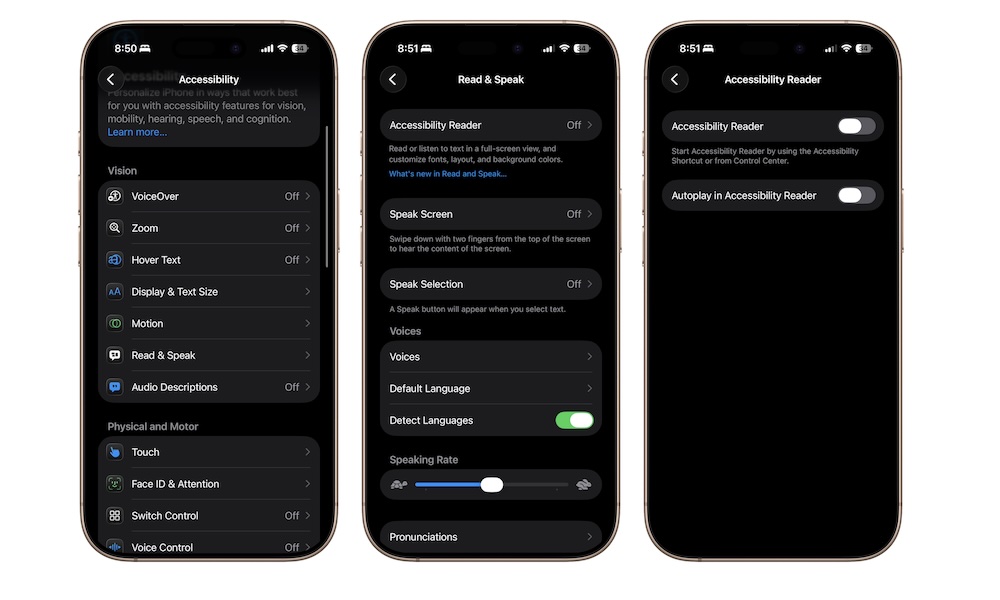
Accessibility Reader is one of the newest and most immediately useful reading tools Apple has added in recent times. It creates a customized full-screen reading experience that can simplify cluttered layouts, adjust text, and even read something aloud for you. If you’ve ever opened a web page or app and felt like the design was fighting you instead of helping you read, this is the kind of feature that you need.
What makes it stand out is that it’s not only for people with diagnosed reading difficulties or eye issues. Anyone who gets distracted by visual clutter, struggles with website layouts, or simply wants more control over how text appears on screen can use it.
To test the accessibility reader for yourself, go to Settings > Accessibility > Read & Speak > Accessibility Reader. This will let you access the Accessibility Reader from your Control Center. So open it and add the Accessibility Reader control. Once you do, go to a web article or an app, open Control Center, and tap the control. You’ll be redirected to the Accessibility Reader, where you’ll have a cleaner view of the article you want to read, alongside some media controls in case you want your iPhone to read for you.
You can also tap the three-dot button in the top right corner of the Accessibility Reader to customize your reader or hide the audio controls.