
6 iOS 26 Features You’re Probably Missing (and How to Use Them)
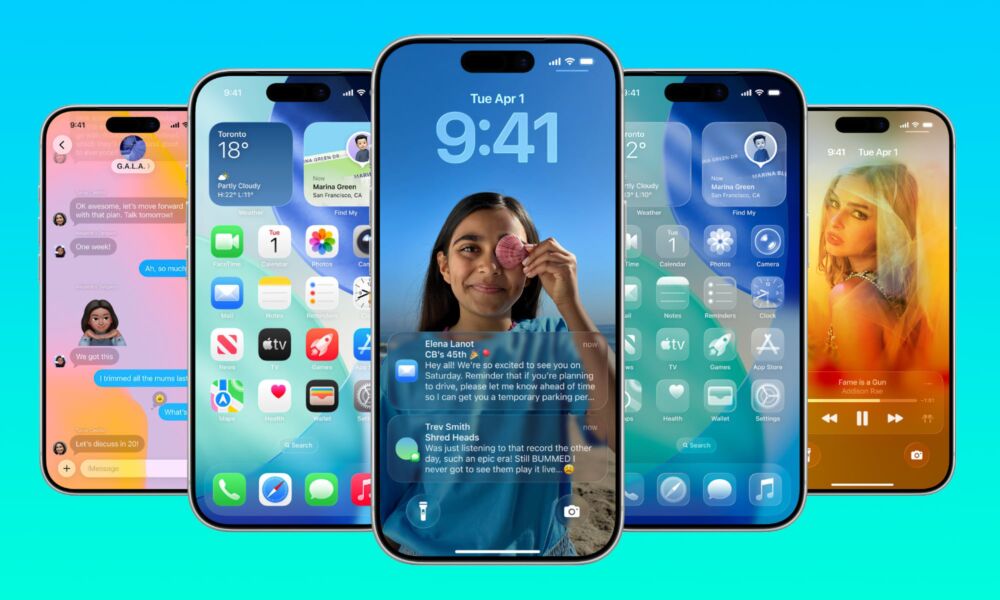
When Apple first announced iOS 26 and released the betas, the new software update gave us a lot to talk about. While some people loved the new changes, others preferred the classic design we’d grown used to over the past decade or so.
While the new design was one of the most significant changes, there was much more that Apple brought to iOS 26. With the latest update, you get new Apple Intelligence features added into everyday apps, more useful tools, and a ton of smaller changes.
With that said, if you updated, poked around the Home Screen for a few minutes, and then went straight back to your usual habits, you’re certainly not alone. But you’re also missing out on a ton of features that can save time, make things easier in your everyday life, and make your iPhone actually feel smart. Read on for 6 of our favorite features so far.
Apple Intelligence Writing Tools & Summaries
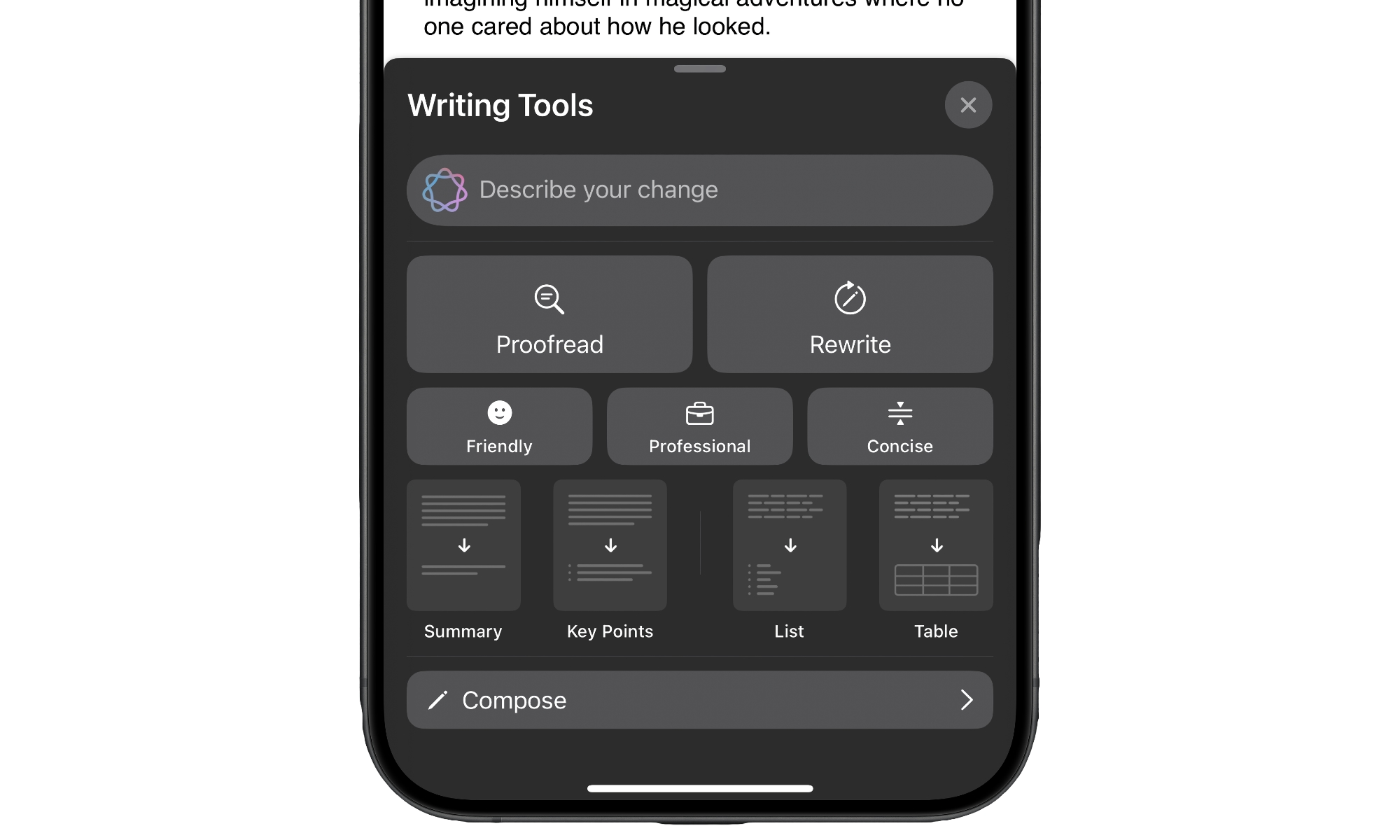
The biggest upgrade in iOS 26 isn’t a widget or a wallpaper; it’s a few improvements to Apple Intelligence. This new software update improves Apple's AI in many aspects, including its writing tools.
You can draft a quick reply in Mail, write some notes, or ask your iPhone to rewrite, shorten, or adjust the tone of a long message. It’s perfect for those emails that might sound a bit too unprofessional or long.
Since Apple Intelligence is designed to run on-device when possible and lean on Apple’s Private Cloud Compute when it needs extra power, your personal content stays much more contained than with typical cloud AI tools. You get the convenience of assistant-style writing without handing your life’s story to a random web form.
Once you’ve used this for a few days, you’ll catch yourself leaning on it for everything from awkward texts to long trip-planning notes.
Liquid Glass Design Is Actually Customizable
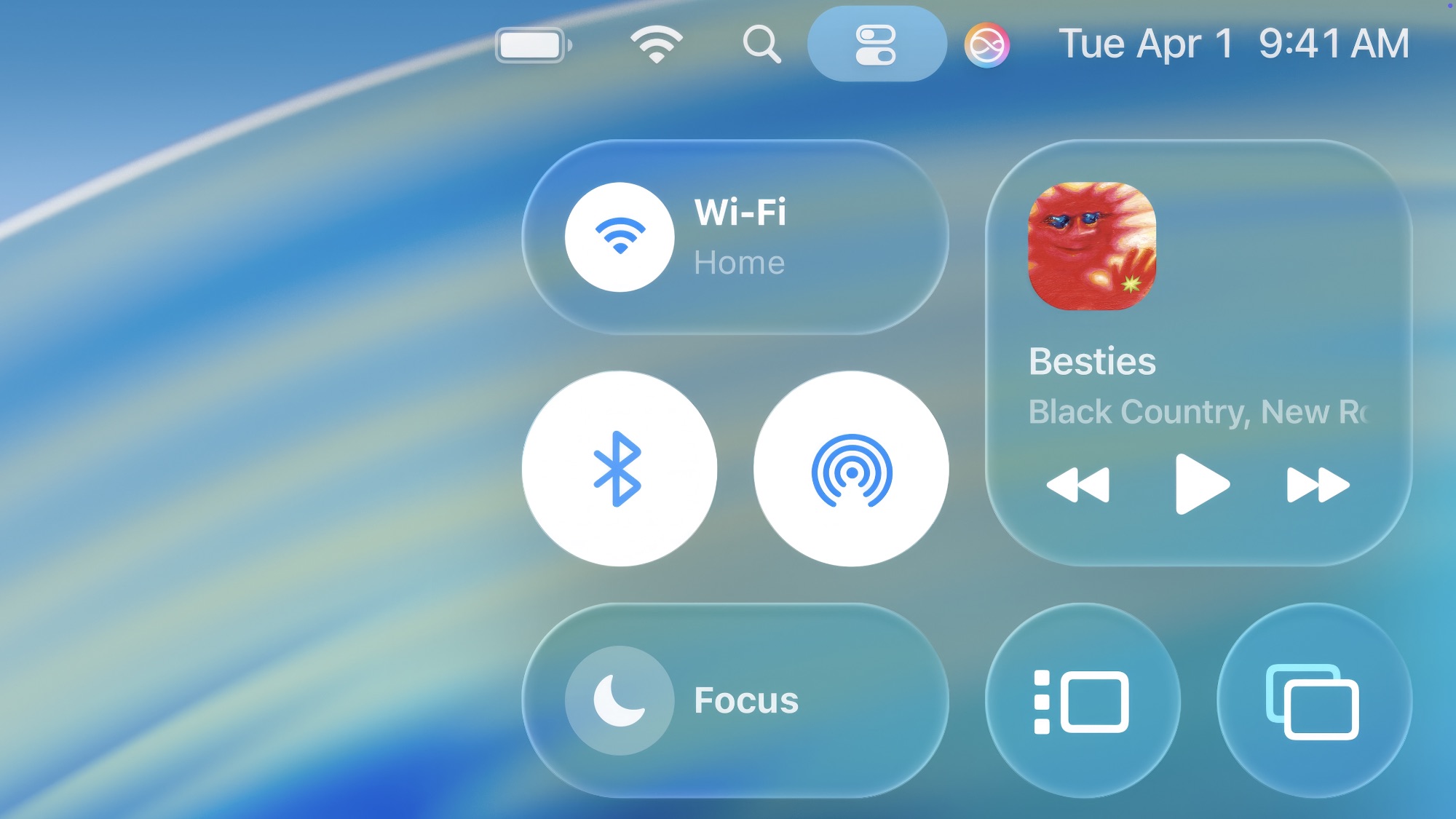
Apple loves to make big visual changes every few years, and Liquid Glass is no exception. Panels and menus now have a glossy, glass-like transparency that pulls colors from your wallpaper and responds subtly as you move and scroll.
Of course, not everyone enjoys this new change, which is understandable. Plus, it might not work as smoothly on older devices. Apple knows this hyper-modern look isn't for everyone. That’s why there’s a built-in way to tone down the Liquid Glass look — a customization secret many folks haven't discovered yet.
To customize your iPhone's Liquid Glass design, there are a couple of things you can do. First, go to Settings > Display & Brightness and tap on Liquid Glass. If you don't want a clear layout, choose Tinted.
Once that's done, go to Settings > Accessibility > Display & Text Size. Next, turn on Increase Contrast and Reduce Transparency.
These changes will not get rid of Liquid Glass, but they will make a difference in the long run.
Backgrounds and Built-In Polls Are Available in Messages
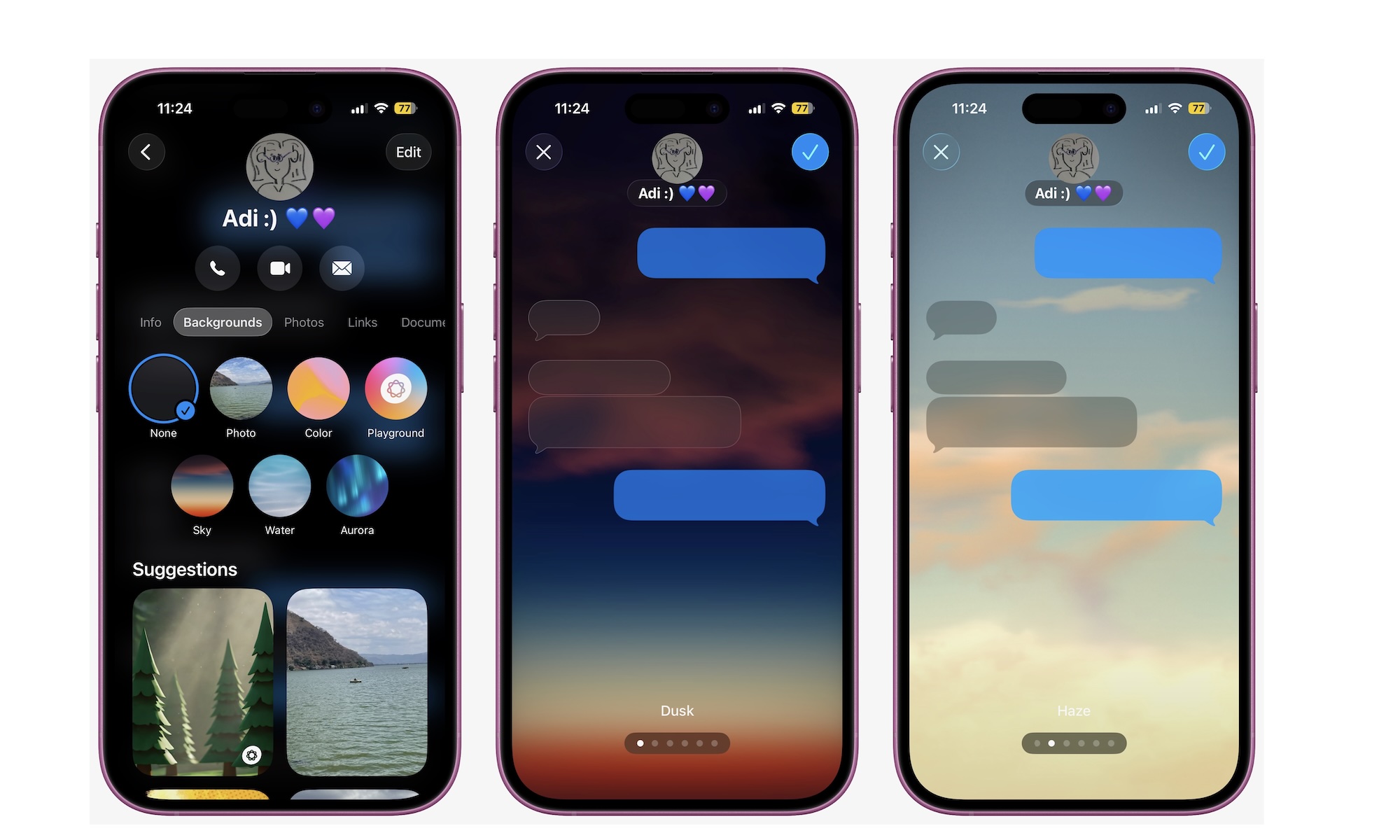
Messages is where most of us spend a lot of time, so it makes sense that some of the most beloved iOS 26 changes land there. Two that you’ll notice immediately are conversation backgrounds and built-in polls.
Backgrounds let you give each conversation its own personality. You might choose a quiet gradient for your partner, a chaotic dynamic scene for your main group chat, and a simple color for work. It’s not just about aesthetics; you can glance at a chat and instantly know which conversation you’re in, which helps avoid those awkward moments when you send a message to the wrong person.
You can change your background by simply tapping on a person's name and then going to Background. From there, choose one of the default options or go to your photos to select a more distinctive background.
Polls solve a different everyday problem: trying to get a group to decide on anything. Instead of sending a dozen “yes or no” messages, you can drop a poll directly into a thread and let everyone vote in place.
After you open a group chat, tap the + button next to the text field and then select Polls. Fill your poll with the options you want and tap on Send.
The New Games App
Games on iPhone used to be scattered across multiple Home Screen pages, or lost in your App Library. Luckily, iOS 26 finally fixes that with a dedicated Games app that acts as your central hub for everything fun.
Open it, and you’ll see your installed games, Apple Arcade titles, achievements, Game Center friends, and curated suggestions all in one place. It feels a bit like the Apple TV app, but for games instead of movies and shows.
This makes it much easier to rediscover games you haven’t opened in months, keep track of what you’ve been playing across devices, and find something new without endlessly scrolling the App Store.
The Games app will appear in your App Library as soon as you install iOS 26, so try it out and start playing those hidden gems you forgot about.
Visual Intelligence and Screenshot Actions
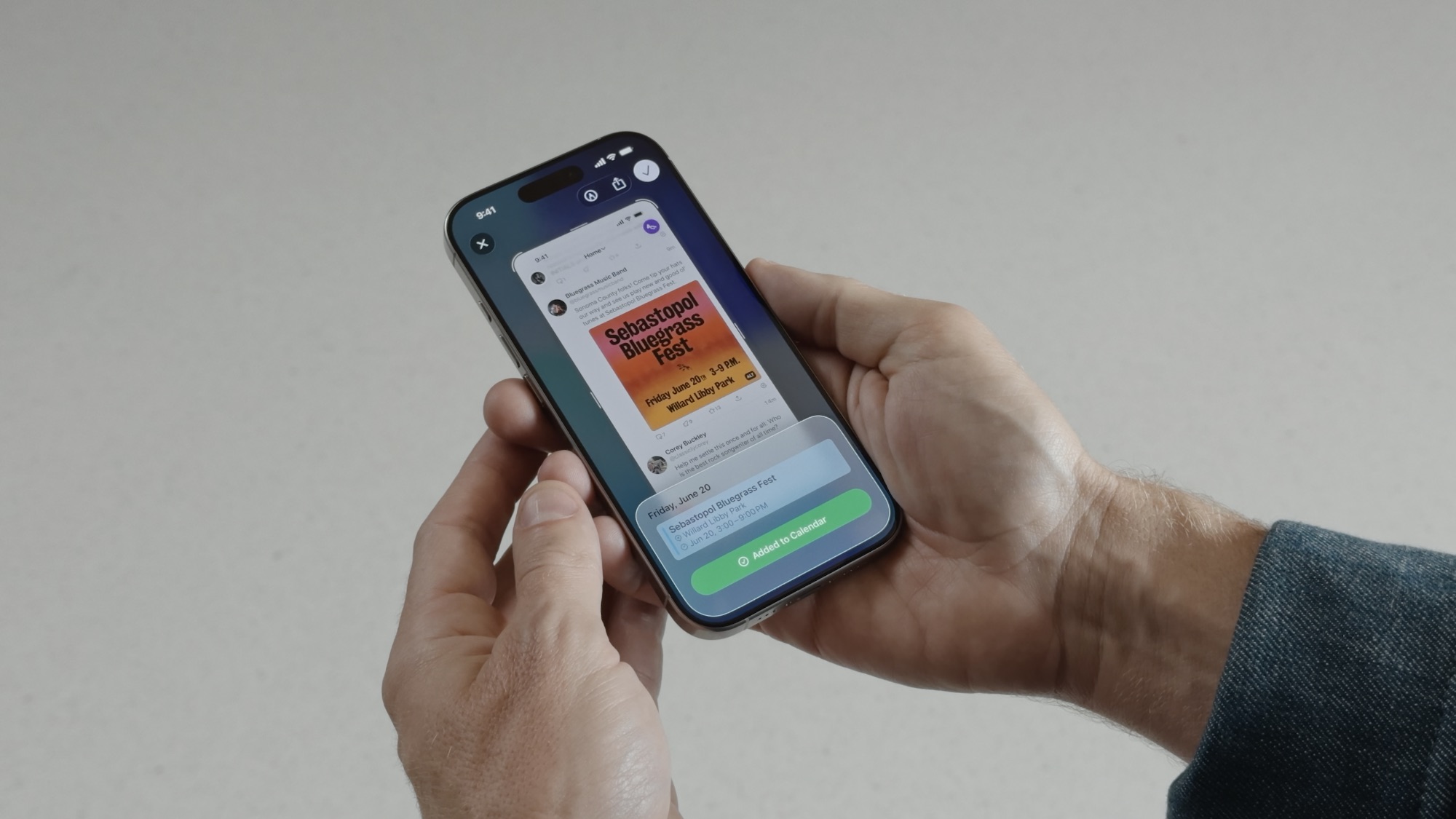
If you're like most of us, some of the screenshots you save are meant to remind you to search for something useful later. Maybe a new pair of shoes you saw while browsing Instagram, or a phone number that you wanted to call later.
Of course, saving a picture for later usually means that we'll forget about it. But that doesn't have to happen anymore, as your iPhone can help you search for something as soon as you take a screenshot.
This is thanks to a new visual intelligence upgrade. When you view a screenshot, a bunch of options will appear at the bottom. You can then use these buttons to ask the web for more information, search for a product's price, or ask ChatGPT for a more specific question.
That might mean identifying a plant or dog breed, recognizing a place, or pulling out dates and addresses to create an event on your calendar. This even works for QR codes or translating foreign text found in screenshots.
All you need to do is take a screenshot and then tap the preview in the bottom left corner to open it. Then, use your finger to highlight a specific object in your screenshot, or tap the buttons at the bottom to get more info straight away. After you have what you need, you can delete the screenshot immediately.
Once you get used to this, your screenshots won't be cluttering up your Photos library. You can just keep the important ones and get information ASAP on the rest.
Phone App Now has Call Screening and Hold Assist
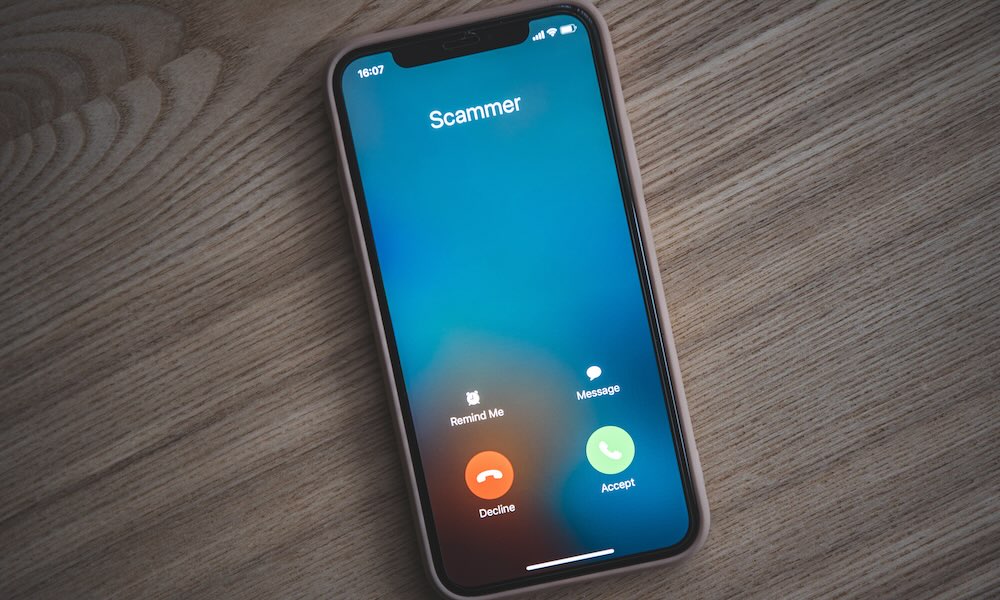
The Phone app quietly gets some of the most practical upgrades in iOS 26, especially if you’re tired of unknown callers and long voicemails.
Call Screening lets your iPhone intercept unknown numbers and ask callers to identify themselves before you even hear your phone ring. You see a transcription of what they said and decide if it’s worth picking up, sending to voicemail, or ignoring. In practice, that means fewer scam calls, fewer robocalls, and more confidence answering to the people who actually matter.
Additionally, your iPhone can also hold the line for you, at least in phone calls. This new feature is called Hold Assist, and as you can guess by its name, it will hold phone calls for you.
Your iPhone will detect that you've been placed on hold and discreetly ask if you’d like it to take over the wait. If you say yes, your iPhone will hold the line while you can go back to watch movies or work. Once a real person on the other side picks up the call, your iPhone will alert you and will let them know that you'll be with them in a moment. Basically, you end up placing them on hold for a couple of seconds.
You can make sure your iPhone has these features enabled by going to Settings > Apps > Phone and turning on Hold Assist Detection, and choosing Ask Reason for Calling below Screen Unknown Callers.
iOS 26 Is Better Than You Might Think
iOS 26 is one of those releases that can feel subtle if you only look at the new design and call it a day. However, once you turn on the right features, it changes how you use your iPhone.
You can get started by using the features we highlighted on the list above, or play around with your iPhone and find more features that maybe we don't even know about.
Spend a couple of minutes walking through these settings, and your “old” iPhone will feel like a brand-new device.