
Not Customizing Control Center For Fast Access
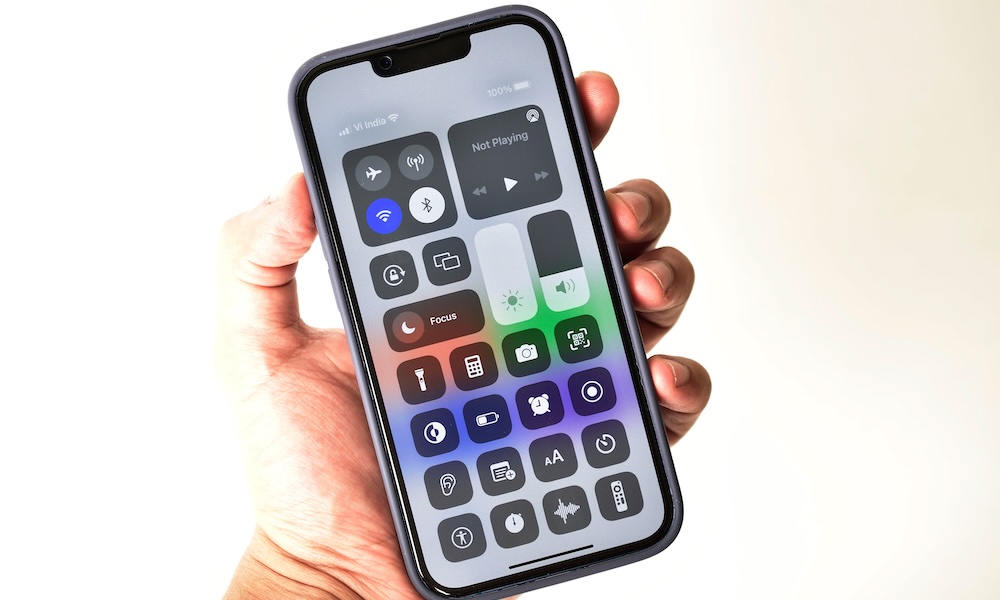
This one is an acceptable mistake, as you couldn’t fully customize the iPhone’s Control Center until recently. But if you keep digging through Settings to toggle things you use constantly, you’re creating extra work for yourself every single day.
Control Center is supposed to be your quick panel. But out of the box, it’s often missing many of the controls people actually use. The moment you add the right controls, your iPhone becomes more personal and easier to manage.
This is also one of the easiest changes to make because it doesn’t require learning anything complicated. It’s just a small upgrade that pays off constantly.
To get started, simply open your Control Center and tap the plus icon in the top right corner of your screen. Next, tap on Add a Control at the bottom of your screen. You’ll be redirected to the controls page, where you’ll find all the controls you have available. You’ll find first- and third-party controls, and you can add as many as you like, as the Control Center now features multiple pages.
Quick Win: Add the Low Power Mode and Dark Mode toggles to your Control Center. It makes managing your battery and eye strain a one-swipe process rather than a hunt through Settings.