
Mastery on the Move: Essential Apps for Every Remote Worker
Remote work sounds simple on paper. You work from home (or a coffee shop), you hop on a few calls, you send updates, and you wrap up the day. In real life, it’s usually messier. Your day turns into a blur of pings, links, “quick questions,” meeting invites, and files that you can’t find when you need them the most.
That’s why the best remote-work apps aren’t just communication tools. The truly useful ones make things go more smoothly in the places that normally slow you down. The right apps make updates faster, decisions easier to find later, handoffs cleaner, and meetings less constant.
And because your iPhone is often the device you have with you when you’re on the move, taking calls, doing errands, or traveling, the apps you need to make work from anywhere easy need to be top-notch.
That’s why we’ve gathered some of the best apps for people who work from home. These tools will help remote workers stay connected, organized, and productive on their iPhones, no matter where they are or what they do.
Slack
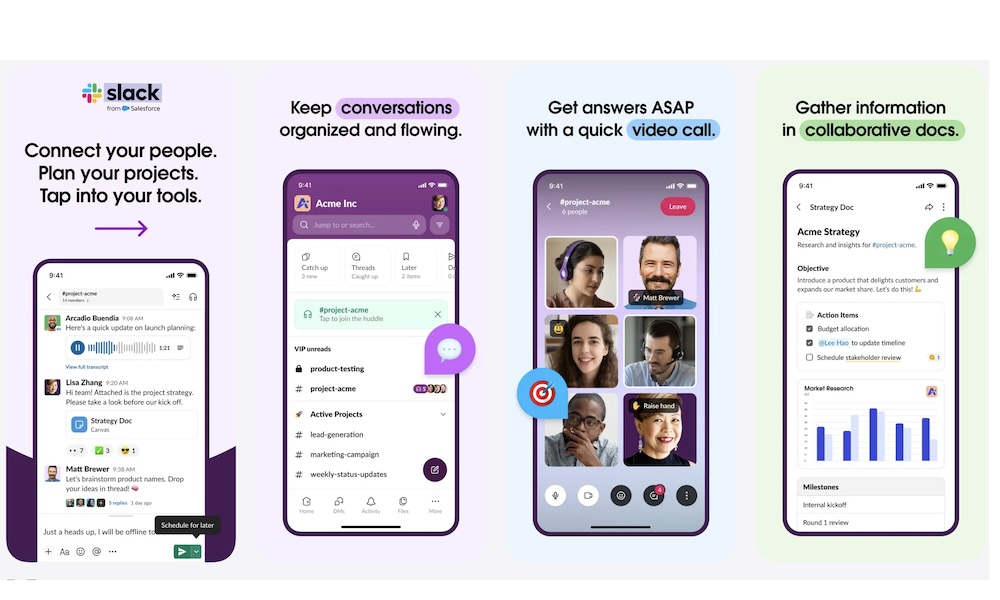
Slack is a really powerful app that turns communication into something you can actually manage. Instead of important conversations getting buried in email threads or scattered across random group chats, Slack conversations live in channels that are searchable, organized, and easy to revisit when you need them.
Where Slack really shines for remote work is the way it supports quick communication without scheduling a whole meeting. Huddles are a perfect example. They’re built for those “can we talk for two minutes?” moments, and Slack even gives you a dedicated thread during a huddle so you can share notes, links, and files without losing them afterward. Additionally, Slack is expanding AI-powered huddle notes on paid plans, capturing takeaways and action items almost automatically.
Slack is also great at keeping a large number of conversations well-organized. You can have different channels set up for different purposes, or even different clients. That way, you and your team can spend less time hunting for information and more time actually working.
Microsoft Teams
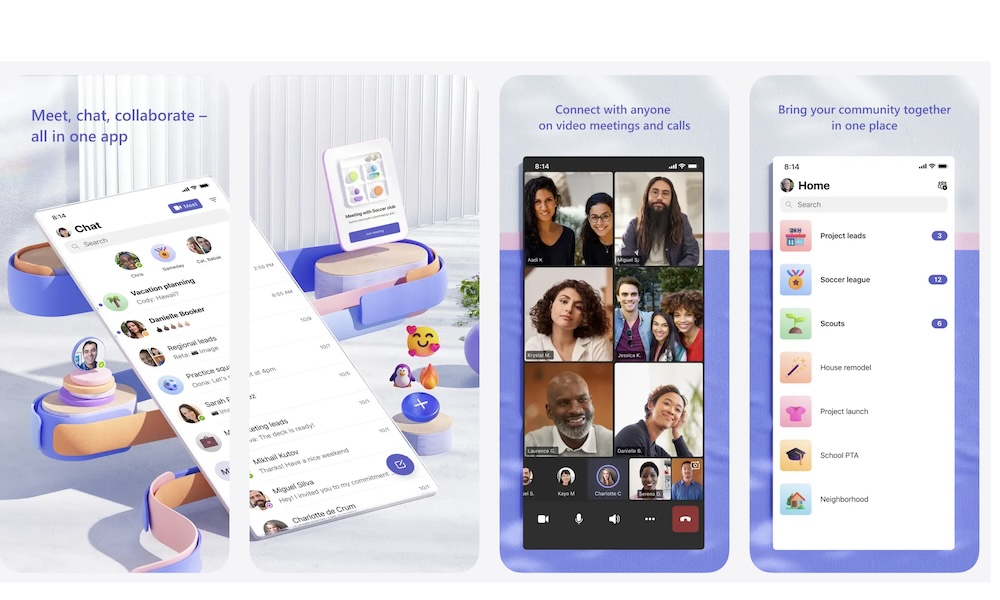
Microsoft Teams is a must-have app for a huge number of remote workplaces, especially those that rely heavily on Microsoft 365. Teams isn’t just for messaging. Sure, you can chat, but you can also use it for meetings, calling, and company-wide communication, all in one place, which is why so many organizations standardize on it.
Teams is great for people who like to work outside of their homes; it makes taking calls and checking messages really easy on your iPhone.
If your clients or employer use Teams, then you’ll need this app on your iPhone. With that said, unless you want to be bombarded with notifications all the time, we recommend setting up notification rules so you’re not getting hit with everything at once. The good news is that Teams, like many of the other apps on this list, supports Focus Filters, so you can ensure they give you the information you want no matter what Focus mode you're in.
Zoom Workplace
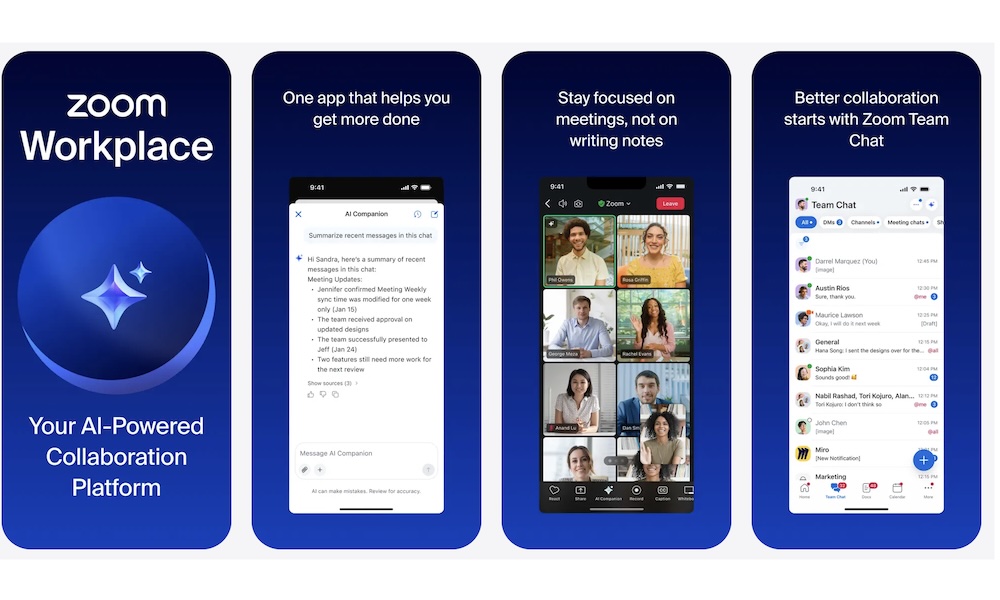
Ever since the pandemic, Zoom has become a staple for all spaces, and it’s still a great app for people who work from home.
Zoom is still one of the easiest ways to run reliable video calls, especially when you’re meeting with clients or people who don’t have a go-to app for video meetings. That reliability is why Zoom remains a default app in the remote work world, even when teams use other apps for internal chat.
Additionally, Zoom Workplace includes tools like Zoom Team Chat and integrated AI features, including the AI Companion panel inside the Zoom Workplace app. Zoom’s AI Companion also comes with features like thread summaries and message drafting in chat contexts, which can be a real time saver when you’re constantly switching between meetings and follow-ups.
Notion
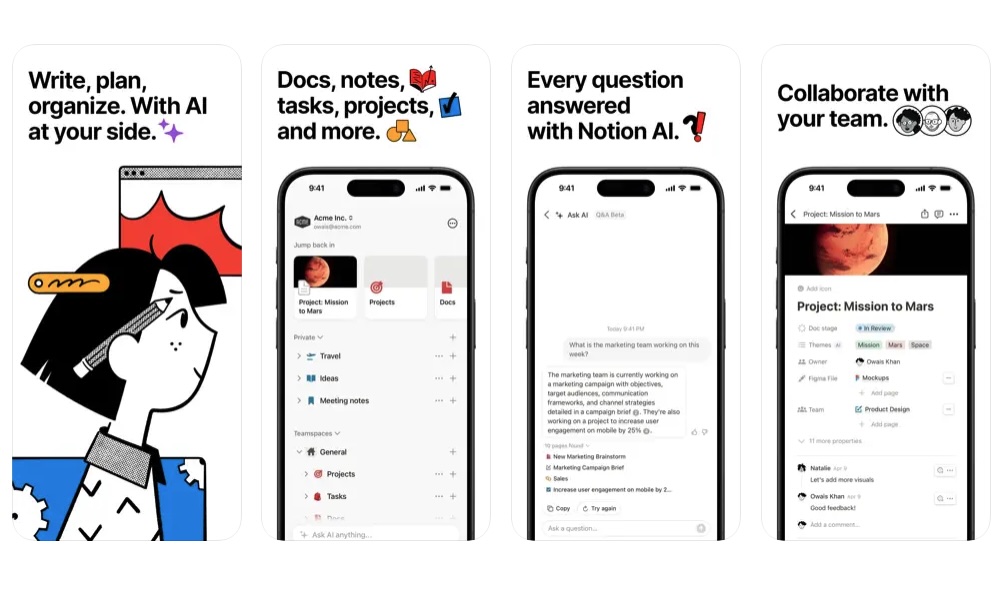
Remote teams run better when decisions and to-do lists are written down, and that’s where Notion comes in.
Notion is popular because it gives teams a quick and easy way to manage tasks that doesn’t feel like an old-school task manager. You can build docs, wikis, project trackers, databases, onboarding hubs, meeting notes — everything that makes remote work smoother when people aren’t sitting together.
Notion has also put real emphasis on offline access, which matters more than you might think. Wi-Fi isn’t always available, and remote workers aren’t always at home. The best part is that Notion's offline mode works on mobile too, so you can still check your notes even if you’re on the go. That’s a huge advantage when you’re traveling, commuting, or working from anywhere that has spotty service.
Asana: Work Management
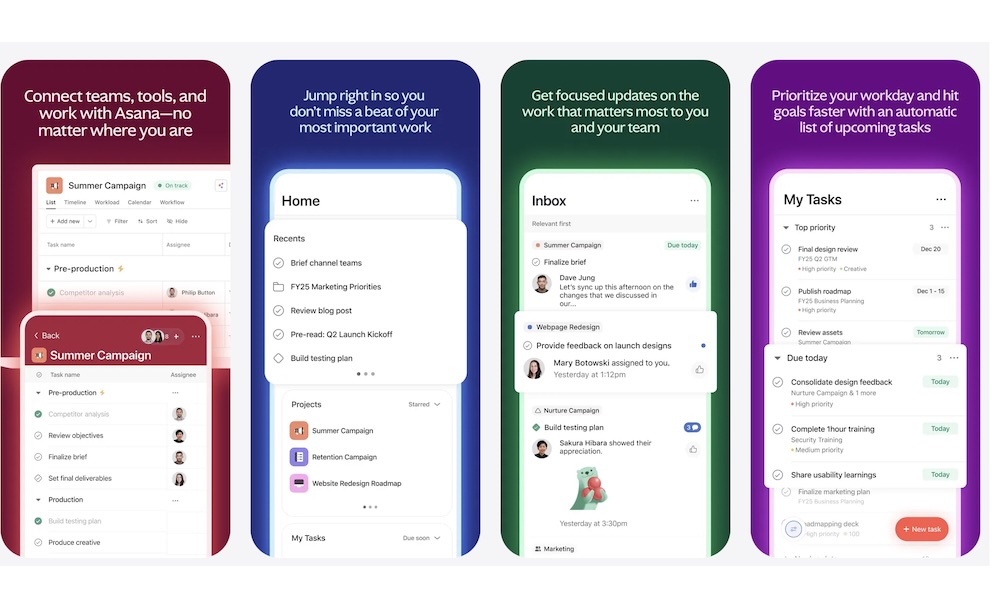
Asana is for when you need to know who’s doing what by when, especially across time zones. It’s one of those tools that makes remote work feel less stressful because it forces clarity. Tasks have owners, there are deadlines for every task, and projects have timelines. And you can see what’s close to its due date before it turns into an emergency.
Asana supports rules that help your work move through stages without the need to manually babysit every task. You can automate your work using rules and custom fields, which can reduce the annoyance of managers constantly asking you what you’re doing because the system handles the handoffs.
Asana also works flawlessly on your iPhone. You can check the status of your current tasks and update them if needed. You’re probably not going to build complex projects from your phone, but you can check what’s due, update tasks, assign things quickly, and stay aligned without needing to open a laptop.
Trello
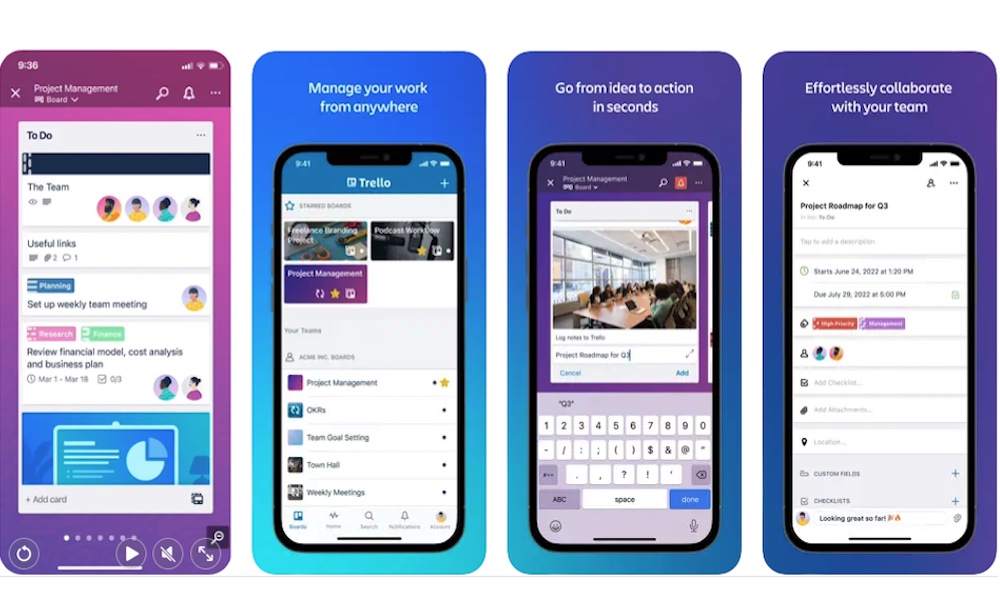
Trello is the opposite of a heavy project management tool. It’s visual, lightweight, and easy to understand at a glance. But don’t get confused, that simplicity is a feature, and not a limitation. Trello works beautifully for content calendars, client tasks, simple to-do lists, and projects where you want clarity without complexity.
Trello has also been evolving, and it now lets you easily collect tasks from email and messaging apps (like Slack and Teams) so action items don’t get lost in conversations. And if you want Trello to do work for you, its automation tool, Butler, can help you even outside of the platform. For instance, you can use it to post to Slack, create Jira issues, and more.
Trello is a great remote-work choice when you want a shared single view that everyone can understand without training. If your team struggles with tool fatigue, Trello’s simplicity can be a relief.
Google Drive
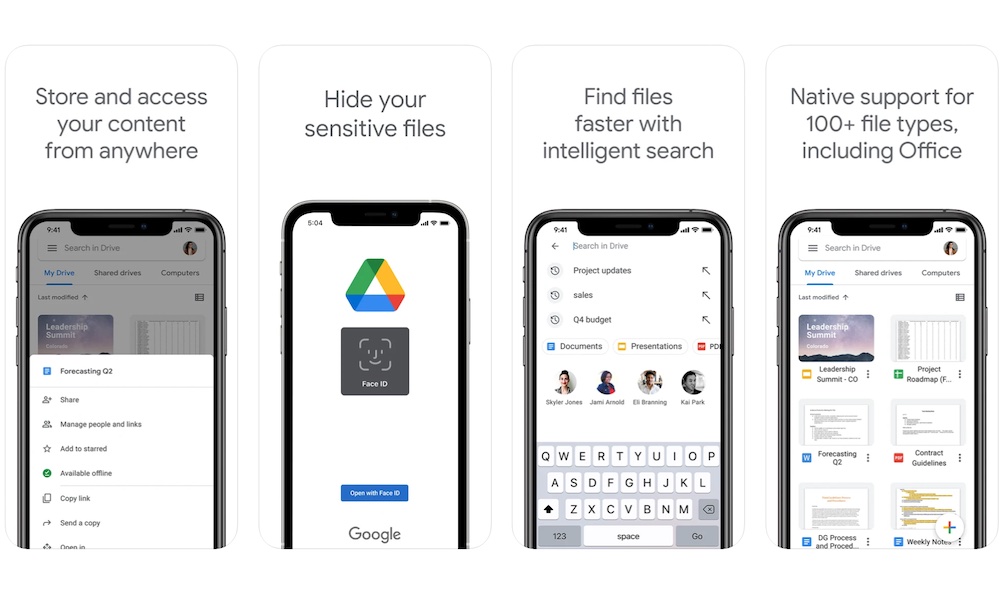
Google Drive is still one of the easiest ways to collaborate on all your files, but it’s especially useful if you’re using Google Workspace or frequently work with clients who mostly use the Google ecosystem.
What’s great about Google Drive is that it solves one of the most annoying remote-work problems: where to store all your files. If you work with many different clients or on different projects, you know files can become a digital mess pretty quickly. But when all your files are in one place, and you can see when the last update took place, everything becomes easier.
Drive is also surprisingly useful on iPhone when you set up offline access. Google lets you have any of your files available offline with a single tap. Just be sure to download the file so it’s available offline, and you can work on it no matter where you are. Once you’re back online, everything will be updated in the cloud as usual.
Microsoft OneDrive
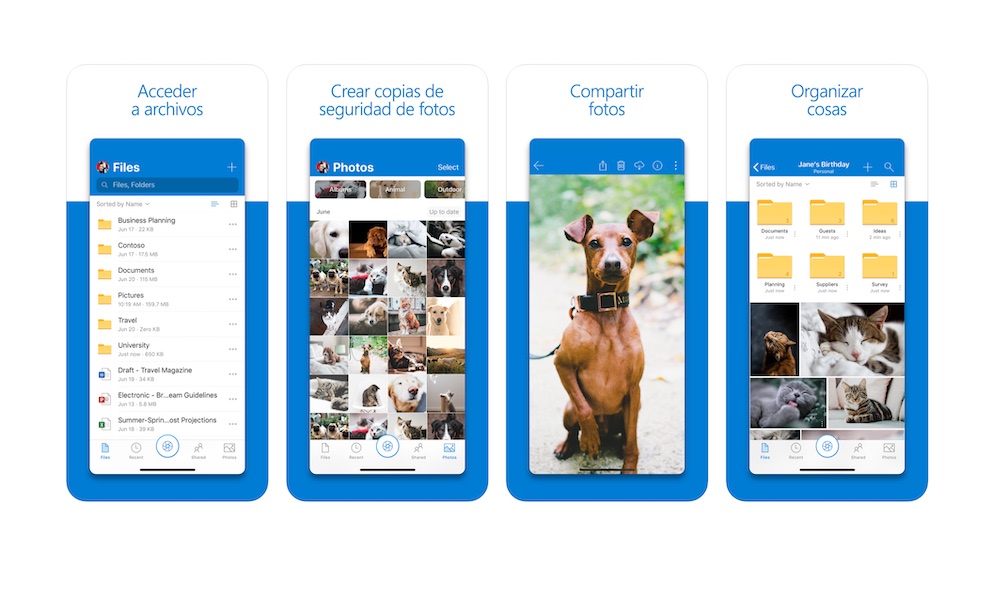
If your world runs on Word, Excel, PowerPoint, and Microsoft 365 accounts, OneDrive becomes the glue that holds it all together. It keeps documents synced, shareable, and easy to access across devices, which is exactly what remote workers need when they’re bouncing between phone, laptop, and work computers.
OneDrive is also getting extra attention right now because Microsoft has turned it into the new way to scan your documents, following the end of Microsoft Lens, which was retired on iOS and Android on January 9, 2026 and will be shut down on March 9, 2026. Now, you’ll be able to scan all your documents from your iPhone with OneDrive, which means fewer apps and steps to get all your files in one place.
For some remote workers, document scanning is not just a nice feature to have; it’s how you handle receipts, signed paperwork, ID verification, handwritten notes, and quick capture of real-world documents without a scanner. If your workflow has relied on scanning documents, now might be a good time to start thinking about switching to OneDrive.
Besides scanning, OneDrive is the perfect app to keep all of your files in the cloud. You can start working on any file on your computer, and continue where you left off on your iPhone while you're on the bus or waiting for a client. You can also easily share your files with pretty much anyone, regardless of which device they use.
Dropbox
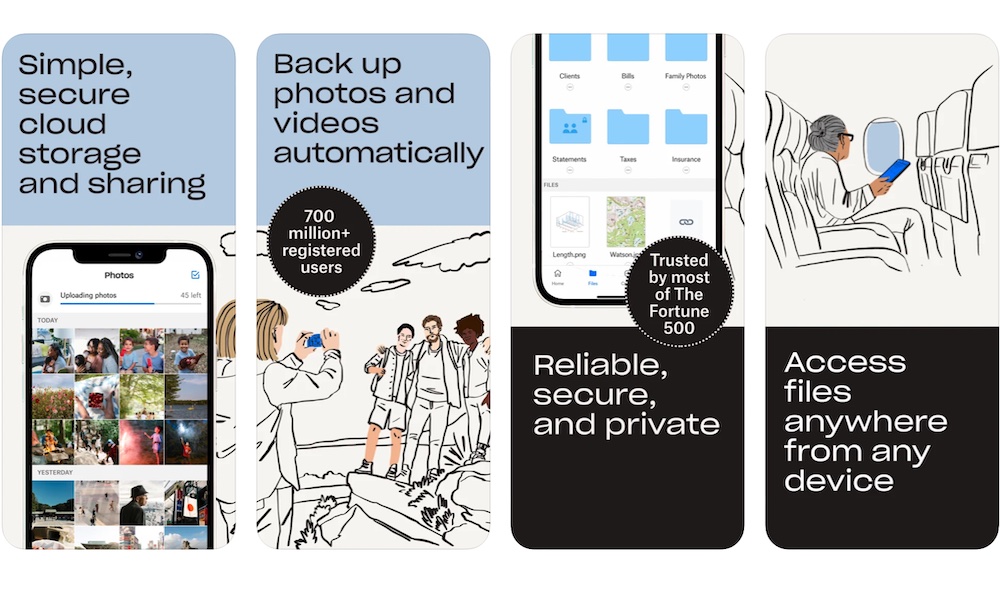
Dropbox has been around for years now, and it is still one of the most dependable options for client work and cross-platform sharing, especially when you’re dealing with large files, shared folders, and collaborators who don’t all use the same operating system.
What’s great about the app is how easy it is to manage and share your files. You can create a “client folder,” which you can use to share your files, assets, and the final version of your product with your clients. They can then check it out instantly, no matter which device they’re using.
One feature that’s especially useful for remote creators or field work is camera uploads, which automatically back up photos and videos from your iPhone. It basically works like iCloud, but it gives you the chance to share it with people on Android phones. Be warned, though, that Dropbox doesn’t offer much free storage, so if you love the app, be ready to spend a few bucks for its monthly subscription.
Dropbox isn’t flashy, and it could definitely use a bit of an overhaul in its user interface. However, it is super reliable, and that's often the most important feature workers need.
Calendly Mobile
Remote work lives and dies by scheduling. If you’re freelancing, managing clients, or coordinating across time zones, the typical “what time works for you?” can be a guaranteed productivity killer.
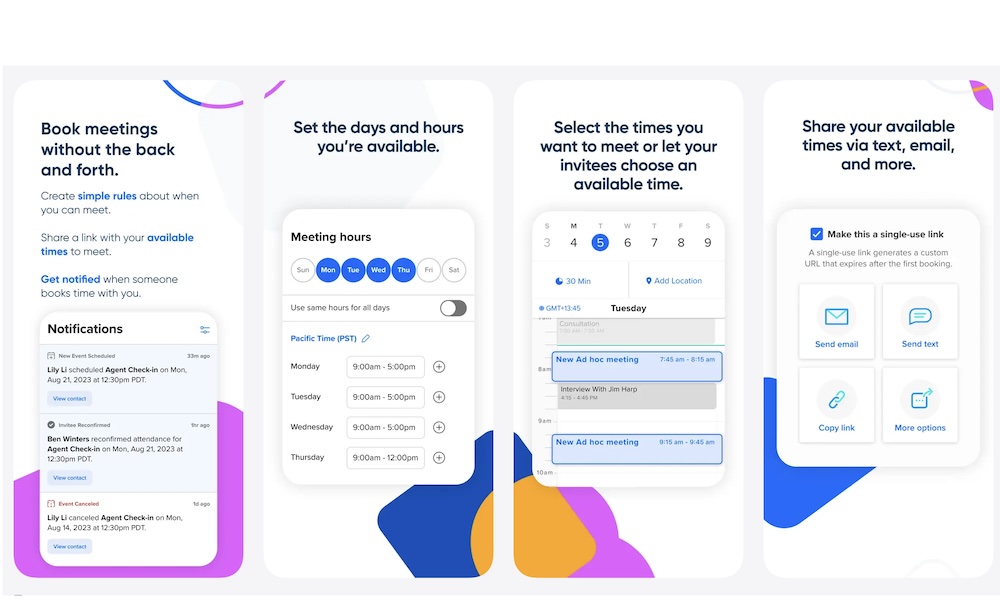
Calendly solves that by letting people book time with you based on your availability, and without the need to send a bunch of emails beforehand. The best part isn’t just the scheduling link; it’s also the extra tools that let you control your time and your meetings almost automatically.
You can schedule the time when you’re available and see and manage your meetings in seconds. You’ll also get notifications when someone books a meeting, and you’ll get a reminder so you never miss it.
Calendly supports buffer times so you can build breathing room before and after meetings. It also supports meeting limits, so your day doesn’t turn into a bunch of unproductive meetings. And if you want tighter control over who can book time (especially as a freelancer), single-use links expire after someone books, which can prevent random re-bookings later.
Toggl Track
Time tracking has a reputation for being annoying, but for remote work, especially freelancing, it’s often the difference between running a healthy business and a total mess.
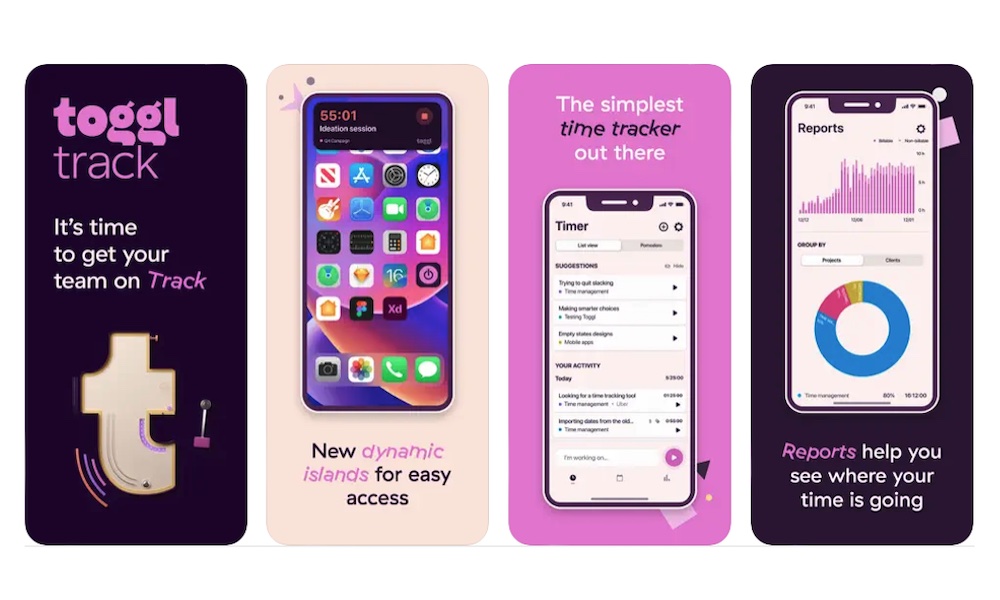
Toggl Track is popular because it’s simple enough to use consistently, and that's the key when it comes to tracking your time. When you track time in real life, you learn where your day actually goes. That clarity helps you price projects better, set boundaries, and stop doing quick extras that quietly consume all your hours.
On iPhone, Toggl is especially handy because it supports quick-start workflows. The widgets let you start and stop tracking right from your Home Screen, and Siri supports controlling timers and accessing reports.
If you’re working remotely and you feel like the day just flies by without actually doing anything that feels productive, time tracking can be a reality check in a good way. It’s not about micromanagement. It’s about knowing how you’re actually spending your time.
Take Remote Working to the Next Level
Remote work gets a lot easier when your tools stop distracting you all the time and start supporting you throughout the day. Of course, you shouldn't feel the need to install every app on this list. Instead, you should try to build a small group of tools that makes work feel actually easy. When communication is organized, files are easy to find, meetings are scheduled intentionally, and focus is protected, your day stops feeling like a constant reaction to pings and starts feeling like steady progress.
If you’re not sure where to start, think about your biggest remote-work pain point. Is it messy communication, lost files, scheduling chaos, so many meetings, or simply too many distractions? Pick one problem, choose one tool that solves it, and try it out for some time. If it actually works for you, stick to it and try another one.